Room checklists and condition ratings in RoomLedger: Good, Fair, Poor, Damaged
How RoomLedger builds a checklist for each room type, what Good, Fair, Poor, Damaged and N/A mean, how issues are counted, and shortcuts that speed things up.
Short answer
In RoomLedger each room gets a checklist based on its type, so a kitchen lists the dishwasher and a bathroom lists the toilet. You rate each line Good, Fair, Poor or Damaged, or N/A if the room doesn't have it; anything unrated stays Not checked. Poor and Damaged count as issues. You can add your own lines, mark the rest Good in one tap, and rate how clean the room was left.
A condition report is only as useful as its consistency. If the move-in says bathroom fine and the move-out lists twelve items, nobody can compare them. RoomLedger gives every room a fixed list of lines and the same four ratings, so a move-out can be checked against the move-in line by line.
Where the checklist comes from
When you add a room you pick its type, and the type sets the checklist for new walkthroughs. Every living space starts from the same base lines:
- Walls and paint, Ceiling, Floor or carpet, Baseboards and trim
- Doors, knobs and locks, Windows and screens, Blinds and window coverings
- Light fixtures and switches, Outlets
Room types then add their own. A few examples:
| Room type | Extra lines include |
|---|---|
| Living room | Fireplace; Thermostat, vents and registers; Smoke / CO detector |
| Bedroom | Closet, shelves and rods; Thermostat, vents and registers; Smoke / CO detector |
| Kitchen | Countertops and backsplash; Cabinets and drawers; Sink and faucet; Dishwasher; Stove, oven and burners |
| Bathroom | Sink, faucet and vanity; Toilet; Tub, shower and doors; Tile, grout and caulk; Exhaust fan |
| Entry | Front door, locks and deadbolt; Doorbell and peephole |
| Basement | Signs of water or moisture; Water heater and furnace |
| Patio or balcony | Deck, patio or balcony surface; Railings; Sliding door and screen; Exterior lights |
There are fifteen room types in all, from Entry to Garage and Other room. The wording is generic US move-in language, not any state's official form.
The ratings
Each line takes one of four ratings or N/A:
- Good: no visible problem.
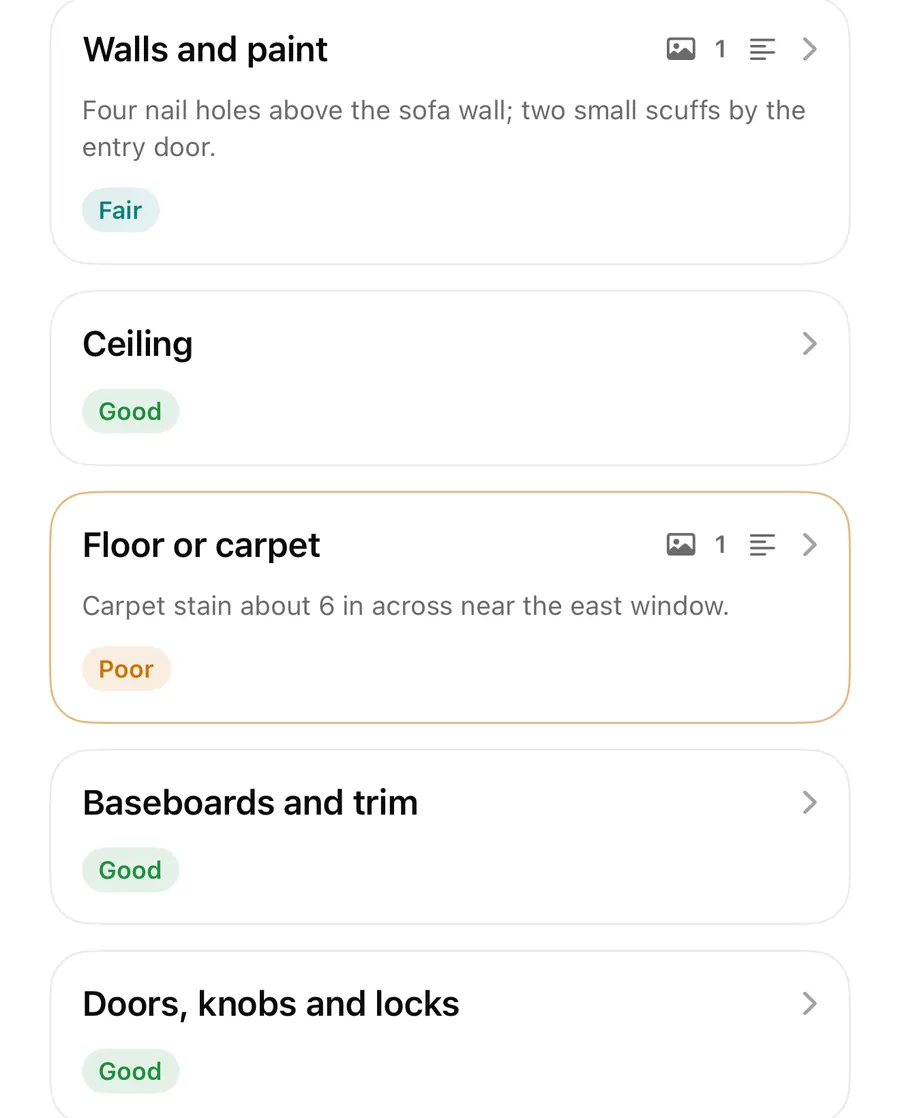
- Fair: normal wear, such as small scuffs or a few nail holes.
- Poor: worn or marked enough to matter, such as a stained carpet.
- Damaged: broken, cracked, missing parts or not working.
- N/A: the room doesn't have it, like blinds in a room with none.
A line you haven't touched shows as Not checked, and the report prints it that way, so a gap is visible rather than hidden. Tap a chosen rating again to clear it.
These are guidelines, not rules in the app: you decide what each rating means for your home. The guide to rating condition has more on choosing between Fair and Poor.
Issues and progress
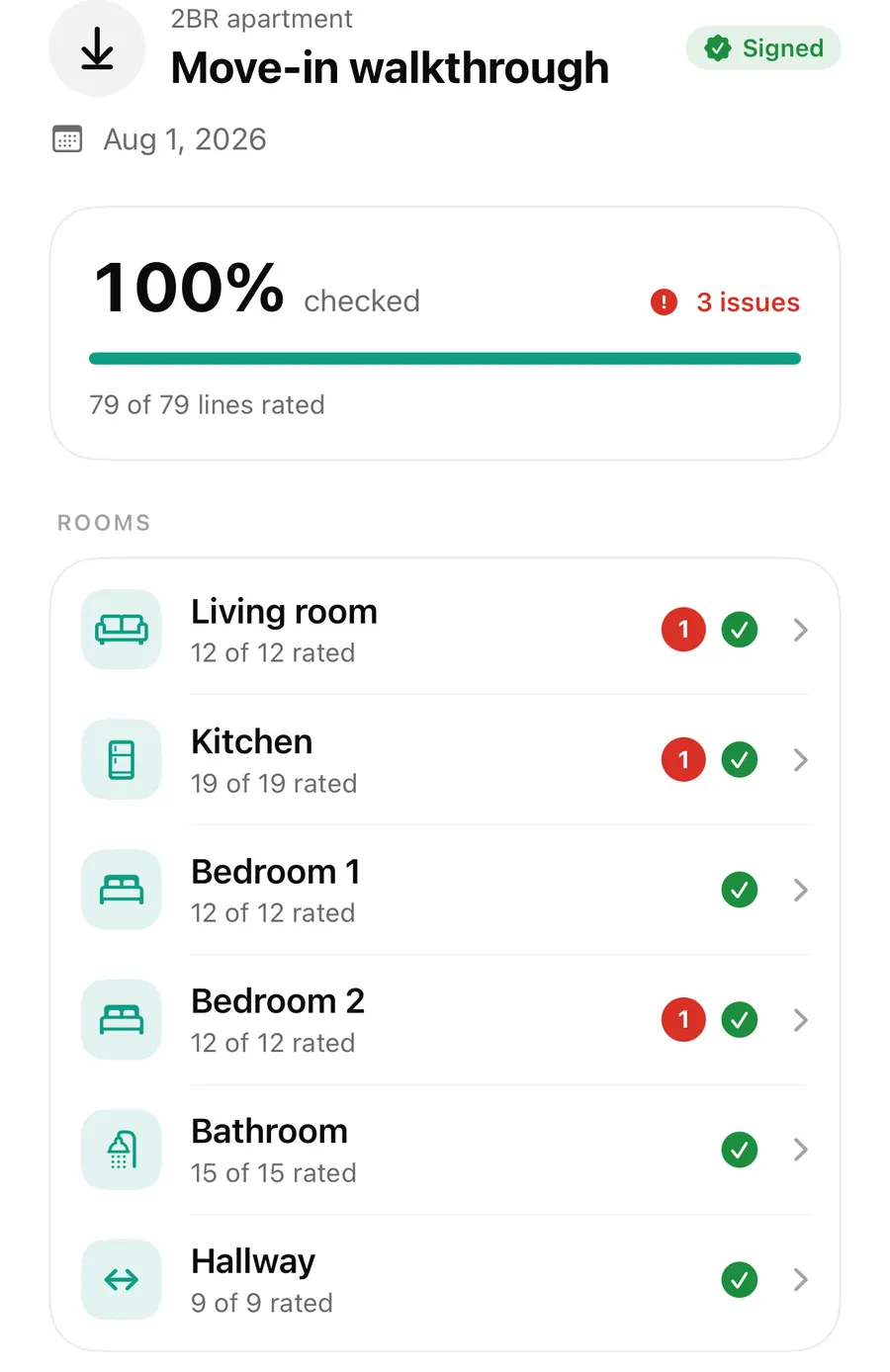
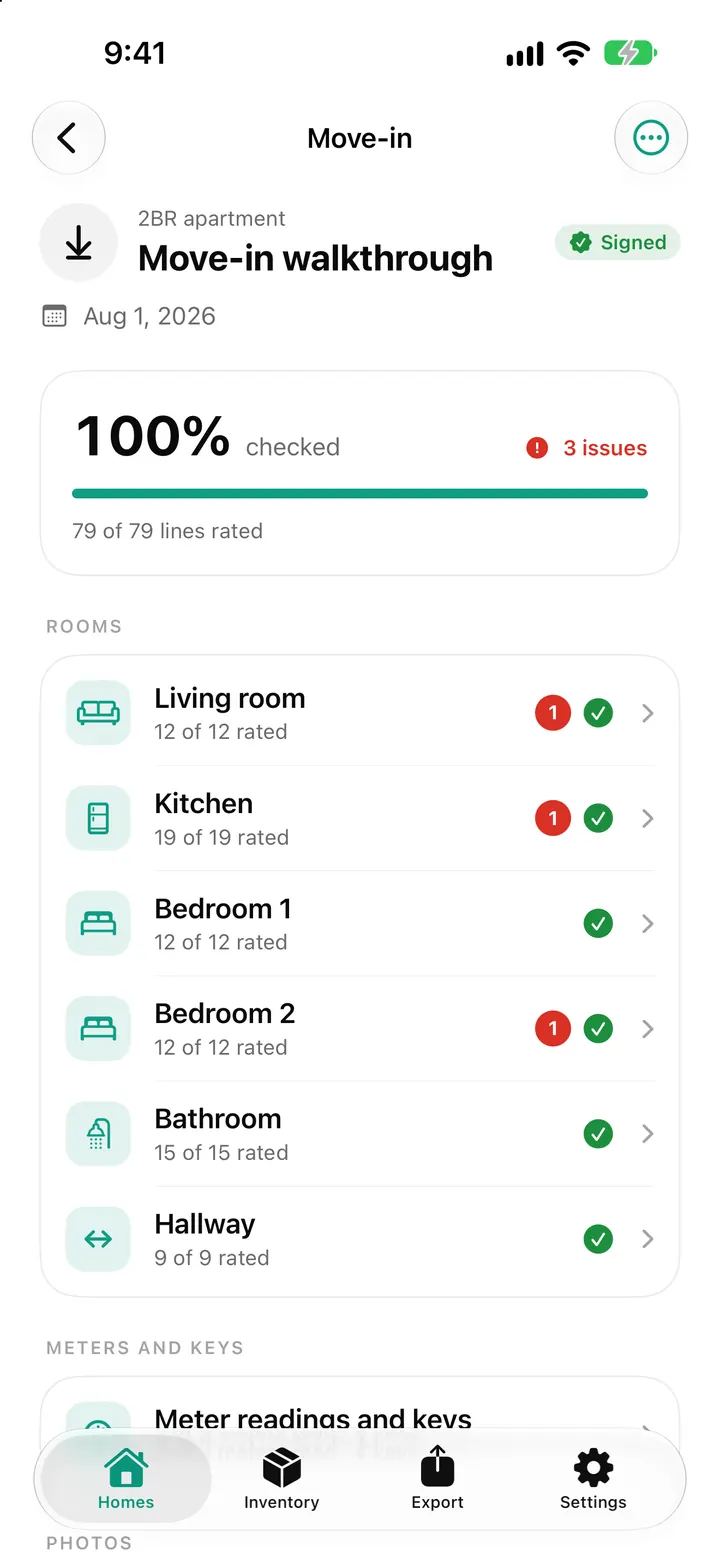
Poor and Damaged lines count as issues. The walkthrough page shows how far you are, for example 100% checked and 79 of 79 lines rated, the number of issues, and each room with its own count and a red badge where it has an issue. In the PDF, the header lists Items checked and Marked poor or damaged.
Speeding it up
Rate a room quickly
- Open the room from the walkthrough.
- Go through the lines that aren't fine first: rate them, add a photo and a note such as where it is, how big, what caused it.
- Mark anything the room doesn't have as N/A.
- Use Add a line for anything the checklist misses, such as a ceiling fan.
- Tap Mark the rest Good to rate every remaining unrated line Good.
- Pick a cleanliness rating at the top of the room.
Mark the rest Good only touches lines you haven't rated, so it never overwrites a Fair or Poor. Use it last, after you've looked at everything.
For notes, you can type, use Dictate, or use Talk through this room to say what you see and get suggested ratings to accept or skip. See voice notes and Talk through this room.
Cleanliness
Cleaning is a frequent deposit question, so each room also gets a cleanliness rating: Professionally cleaned, Clean, Needs a clean or Dirty. It describes how clean the room was left and prints on the room's page in the report. Tap the choice again to clear it.
Room order
On the home page, Reorder changes the order of rooms. Walkthroughs and PDF reports list rooms in that order, so you can match the route you walk through the home. Signed reports keep the order they were signed with.
After signing
Once both required people have signed, every room shows Signed and locked. To change ratings, create an amendment from the walkthrough. The ratings can't be edited in place; an amendment records the change and is signed again. See signing and amendments.
FAQ
Can I remove a line that doesn't apply?
Mark it N/A. It stays on the list, so the report shows it was considered rather than skipped.
What's the difference between Poor and Damaged?
Poor is worn or marked; Damaged is broken or not working. Both count as issues. Pick whichever describes what you see, and add a photo and a note either way.
Does Mark the rest Good change lines I already rated?
No. It only rates lines that are still unrated.
Will the move-out use the same lines?
Yes. A move-out started from a signed move-in copies its lines, so the two can be compared line by line. See the move-out comparison.
Download RoomLedger and rate your first room in a few minutes.
Keep reading
Do a move-in inspection with your iPhone: how RoomLedger records it
Walk each room with RoomLedger: rate every line, take photos, read the meters and sign a dated move-in condition report on your iPhone, with no account needed.
Read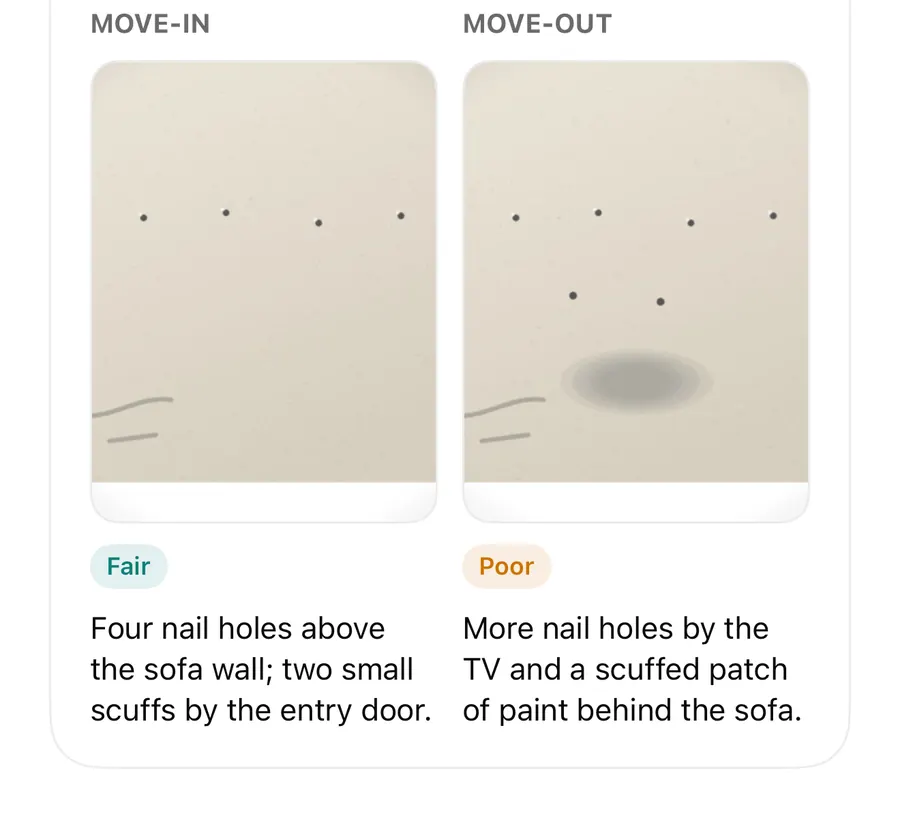
Room photos in RoomLedger: suggested shots, mark-up and photo checks
Take the right room photos in RoomLedger: eight suggested shots per room, mark-up that keeps the original, prompts to retake blurry shots, and face blur.
ReadVoice notes in RoomLedger: dictate on device and talk through a room
Dictate checklist notes on your iPhone, or talk through a room and review suggested ratings and notes from Apple Intelligence. Nothing changes until you accept.
ReadHow to Rate Asset Condition in RoomLedger
Rate asset condition in RoomLedger with photos, descriptions, severity, location, and update dates without guessing responsibility.
Read guide