Voice notes in RoomLedger: dictate on device and talk through a room
Dictate checklist notes on your iPhone, or talk through a room and review suggested ratings and notes from Apple Intelligence. Nothing changes until you accept.
Short answer
RoomLedger has two ways to speak instead of type. Dictate sits under a checklist line's notes and turns what you say into text on the iPhone. Talk through this room lets you describe a whole room out loud; on iPhones with Apple Intelligence (iOS 26), it suggests ratings and notes for the lines you mentioned, and nothing changes until you accept each one. Accepted notes are marked AI-suggested, reviewed.
Typing notes with one thumb while holding a phone up to a wall is slow, and it's tempting to write scuffed and move on. Speaking is faster and tends to produce better notes: where the mark is, how big it is, what it looks like. RoomLedger keeps the speech on the iPhone and keeps you in charge of what goes into the report.
Dictate a note
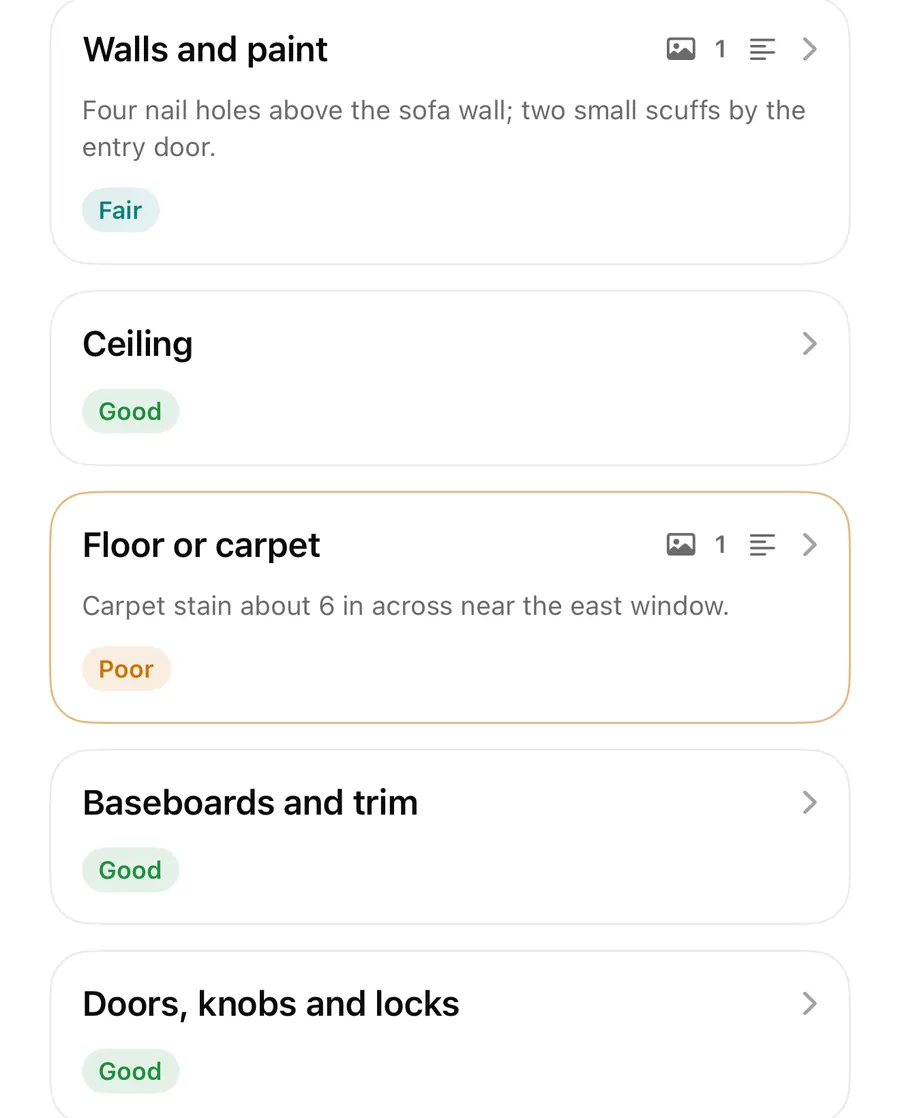
Open a checklist line, such as Walls and paint. Under the notes field, tap Dictate and speak. What you say appears live under the button as Listening… turns into text; tap Stop dictating to add it to the note. You can edit the text afterwards like any note. The same button appears on inventory item notes.
Dictation runs on the device: what you say is turned into text on this iPhone and isn't sent anywhere. Because of that, the button only appears where the iPhone can recognize speech on device in the app's language. The first time a language is used, the iPhone may need a connection to download it.
RoomLedger asks for microphone and speech recognition access the first time. If either is off, it tells you which one and offers Open Settings.
Talk through this room
On a room's checklist, Talk through this room sits in the toolbar. Instead of dictating line by line, you walk around and describe the room in one go, for example: The carpet has a stain by the window. The walls are fine.
Talk through a room
- Open the room in the walkthrough and tap Talk through this room.
- Tap Start talking and walk around, saying what you see, line by line.
- Tap Done talking. RoomLedger goes through what you said.
- Under Check each suggestion, read every suggested rating and note. Change the rating or edit the note if needed.
- Tap Accept or Skip on each one.
- Tap Apply accepted to add the accepted ratings and notes to the checklist.
What the suggestions are, and what they aren't
On iOS 26 with Apple Intelligence turned on, Apple's on-device model reads what you said and suggests, for each line you talked about, a rating and a short note. It can only choose lines from this room's own checklist and the four ratings, Good, Fair, Poor and Damaged. If what you said doesn't make a rating clear, no rating is suggested and the line keeps the rating it has.
Every suggestion is labeled AI-generated and marked as suggested on this iPhone by Apple Intelligence, to check before you use it. Nothing changes until you accept it. When you apply, accepted notes are added on a line of their own ending in (AI-suggested, reviewed), so anyone reading the report can see where the wording came from and that a person checked it.
If you said too much at once, RoomLedger asks you to talk through a few lines at a time. If no checklist lines came up, or the model can't go through it, you can add what you said to a line's note instead.
On iPhones without Apple Intelligence
Where Apple Intelligence isn't available (before iOS 26, turned off, or a language it doesn't support), Talk through this room still works as a room-wide dictation. Your words are turned into text under What you said, where you can tidy them up; then pick a line and tap Add to note.
Privacy
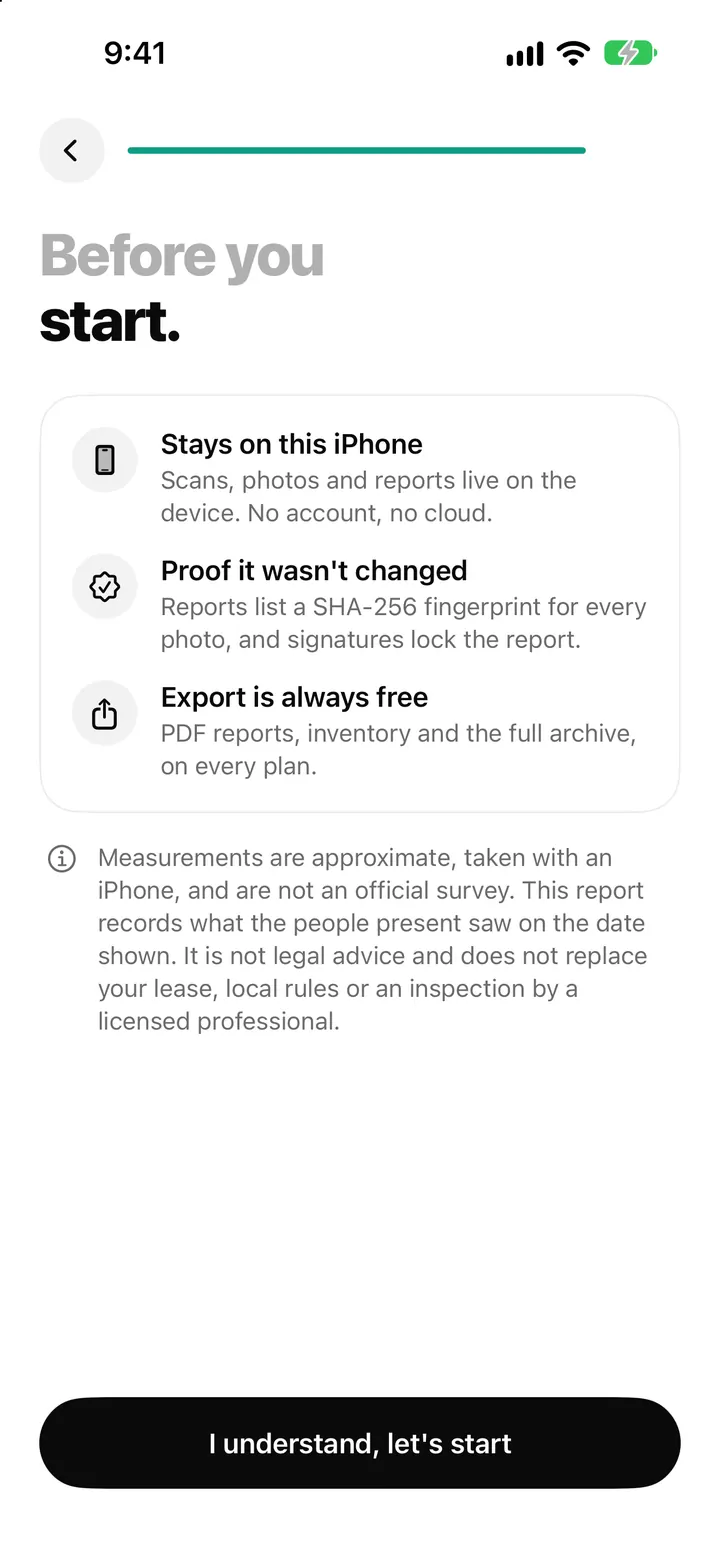
Both features run on the iPhone. Speech is turned into text on the device, and Apple Intelligence suggestions are made on the device, with a fresh session for each room. No audio is saved with the walkthrough; only the text you add becomes part of it.
FAQ
Is my voice sent to a server?
No. Speech is turned into text on the iPhone, and Apple Intelligence suggestions are made on the device. Nothing is sent anywhere.
Will Talk through this room change ratings on its own?
No. It only suggests. Nothing reaches the checklist until you accept a suggestion and tap Apply accepted.
How will the other person know a note came from a suggestion?
Accepted notes end in (AI-suggested, reviewed), in the app and in the report.
Why don't I see the Dictate button?
It appears only where the iPhone can recognize speech on device in the app's language. Check that the language is supported and downloaded on your iPhone.
Does it work after the report is signed?
No. Signed walkthroughs are locked, and changes go into an amendment that both people sign again. See signing and amendments.
Download RoomLedger and talk your way through the next walkthrough.
Keep reading
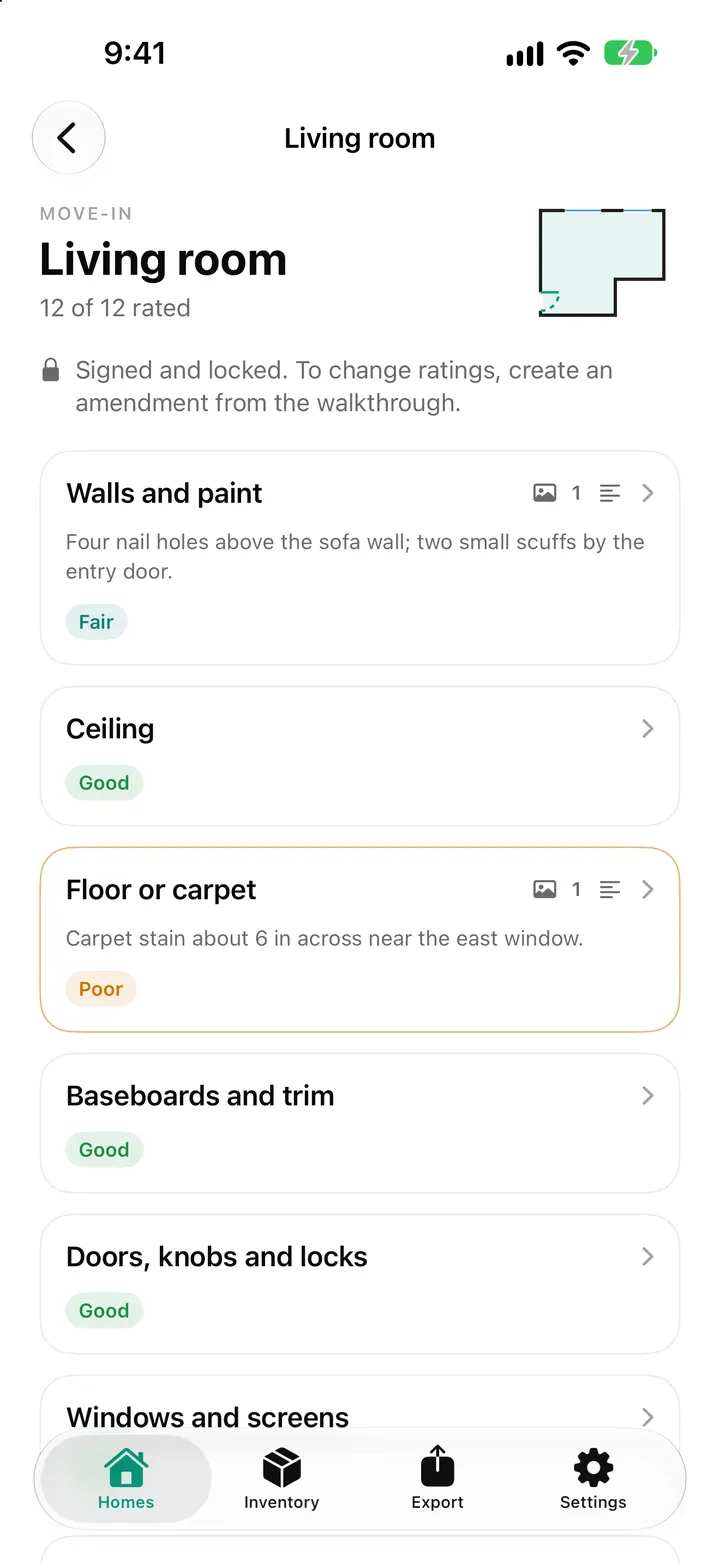
Room checklists and condition ratings in RoomLedger: Good, Fair, Poor, Damaged
How RoomLedger builds a checklist for each room type, what Good, Fair, Poor, Damaged and N/A mean, how issues are counted, and shortcuts that speed things up.
Read
Room photos in RoomLedger: suggested shots, mark-up and photo checks
Take the right room photos in RoomLedger: eight suggested shots per room, mark-up that keeps the original, prompts to retake blurry shots, and face blur.
ReadRoomLedger privacy: on-device records, Face ID lock and moving a home
RoomLedger keeps scans, photos and reports on your iPhone, with no account. Lock it with Face ID, limit usage data and move a home as an encrypted file.
ReadHow to Record Each Room’s Condition at Move-In
Record rental move-in condition with room photos, captions, locations, equipment and a dated RoomLedger report.
Read guide