RoomLedger privacy: on-device records, Face ID lock and moving a home
RoomLedger keeps scans, photos and reports on your iPhone, with no account. Lock it with Face ID, limit usage data and move a home as an encrypted file.
Short answer
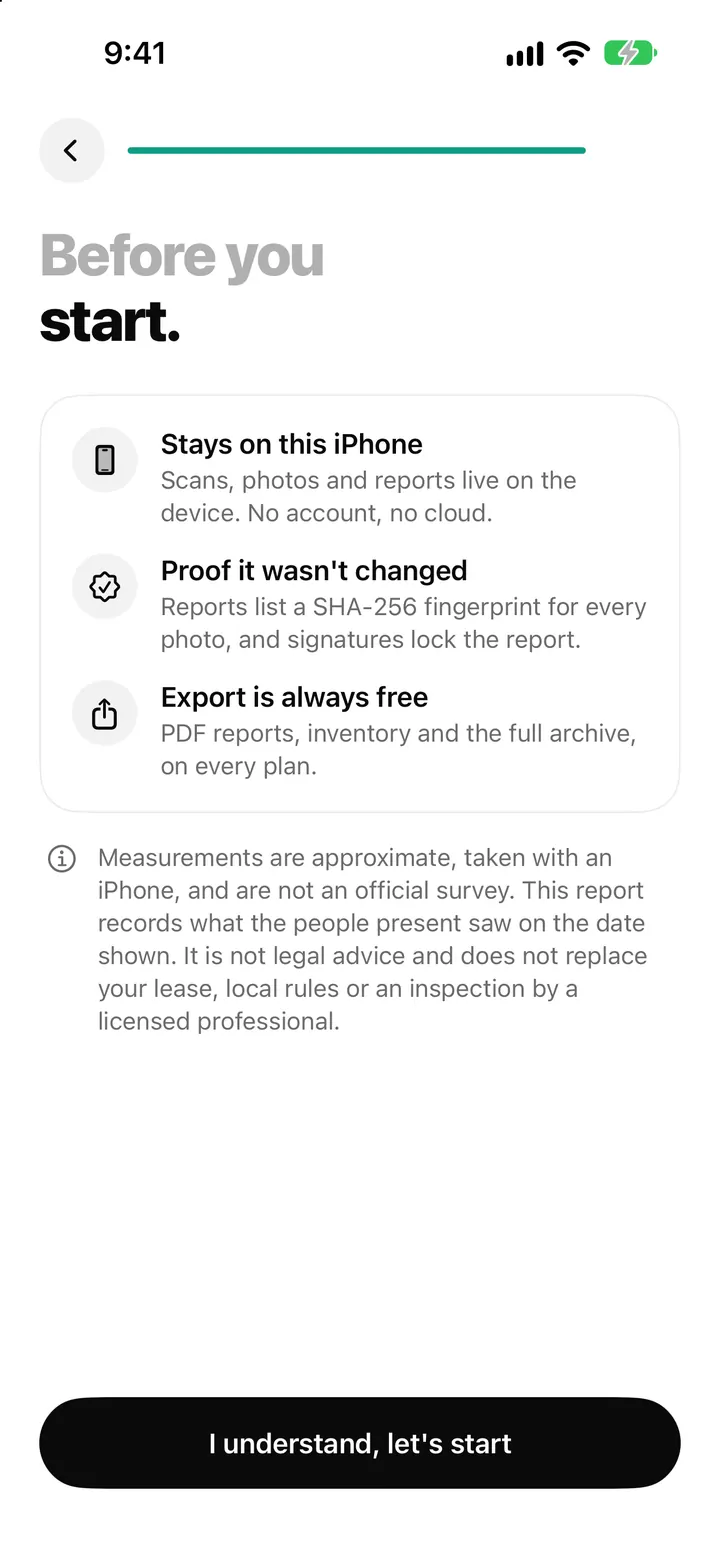
RoomLedger has no account and no cloud. Scans, photos, signatures and reports live on your iPhone until you share them. You can turn on Lock with Face ID, turn off Share anonymous usage, share scan stats only if you choose to, clear the activity history, and move a home to another iPhone as a .roomledger file that is encrypted when you set a password. Erase all data removes everything.
A condition report holds a lot of personal detail: an address, names, signatures, photos of rooms and sometimes of people, and an inventory with values and serial numbers. RoomLedger is designed so that none of it sits on someone else's server. This post covers where your data lives, the privacy controls in Settings, and how to move a home between devices without a cloud.
On the device, by design
The first screen you see makes the promise plainly: Scans, photos and reports live on the device. No account, no cloud. There is nothing to sign up for. Room scans, text recognition for meters, labels and receipts, dictation and the optional Apple Intelligence suggestions all run on the iPhone.
Data leaves only when you send it: sharing a PDF, saving an export to Files, sending a walkthrough to be signed on another iPhone, or moving a home. Your normal iPhone backup includes the app's data, as with any app.
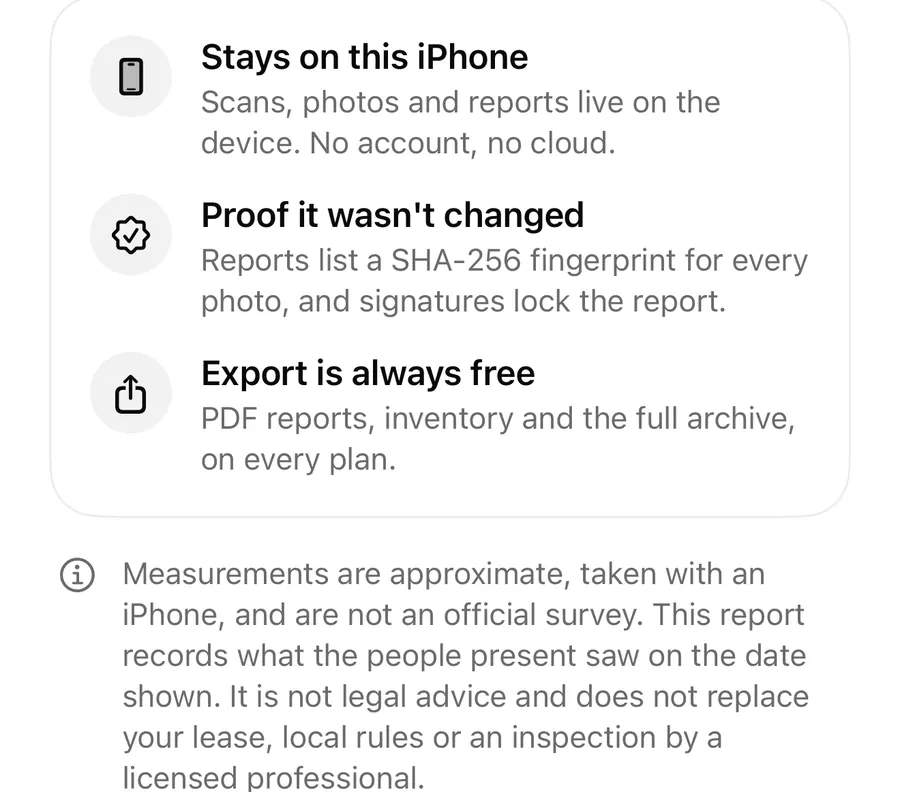
Two smaller details help too. Photos you add from your library are copied into the app, and their location is dropped; the report labels them from library and keeps the date from the photo file. And when you export a PDF, Blur faces in photos blurs faces only in the PDF, while an optional PDF Password protects the file itself. RoomLedger doesn't keep that password, so send it separately. More in the condition report PDF post.
Privacy controls in Settings
| Setting | What it does | Default |
|---|---|---|
| Lock with Face ID | Asks for Face ID (or Touch ID) when you open the app or come back to it | Off |
| Share anonymous usage | Counts which screens and features are used, notes a few settings and reports errors without any content | On; you can turn it off |
| Send scan stats | Opens the share sheet with a small file of counts of scans started, saved and failed, with the app and iOS version | Sent only if you share it yourself |
| Keep activity history | Lists your last 500 actions so you can find things again | On; you can turn it off or clear it |
With Lock with Face ID on, RoomLedger locks whenever it goes to the background and shows RoomLedger is locked until you unlock it. Inventory items are normally searchable in Spotlight; while the lock is on, that index is emptied so locked records don't show up outside the app.
Storage & history shows how much space RoomLedger uses, broken down by type and by home, and the activity list. Clearing history removes only the list; everything you saved stays.
Move a home to another iPhone
There is no sync, so moving a home is done with a file. Under Move a home to another iPhone, Send a home packs the rooms, floor plans, 3D scans, walkthroughs with signatures, items, photos and receipts into one .roomledger file. Records keep the same ids, so signed reports check out the same on the other iPhone.
Move a home with a password
- In Settings, open Move a home to another iPhone.
- Under Send a home, pick the home and type a Password. With a password the file is encrypted.
- Tap Make the .roomledger file, then share it over AirDrop or save it to Files.
- On the other iPhone, open the same screen and tap Open a .roomledger file under Receive a home.
- Enter the password. Every file is checked against the archive's manifest before anything is added.
- Tell the other person the password some other way than the file itself.
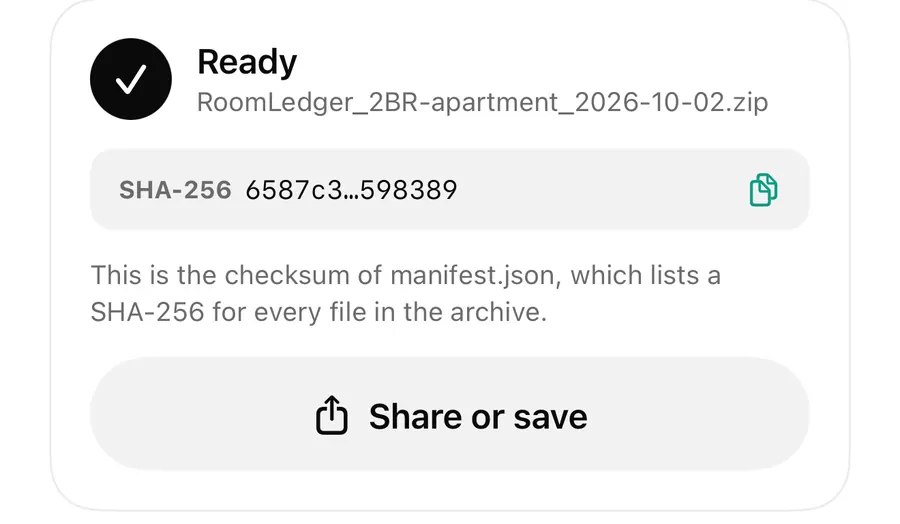
A home that's already on the receiving iPhone isn't replaced. A wrong password, or a damaged file, stops the import. The same manifest idea is behind Check an export; see verifying an export.
Erasing everything
Erase all data, at the bottom of Settings, deletes every home, scan, photo, signature and item on this iPhone. It can't be undone. If you might need the records later, make an Everything (ZIP) export first and store it somewhere you control. Removing the sample home on its own is a separate option under Data.
FAQ
Does RoomLedger upload my photos?
No. Photos, scans and reports stay on the iPhone. They leave only when you share or export them yourself.
Can I sync RoomLedger between my iPhone and iPad?
No. There is no cloud sync. Use Move a home to another iPhone to send a home as a file, which works between iPhone and iPad.
What does anonymous usage include?
Which screens and features are used, a few settings such as the accent color, and errors without any content. Scans, photos, names and values are not included. You can turn it off in Settings.
What if I lose the password for a moved home?
The encrypted file can't be opened without it, and RoomLedger can't recover it. Make a new file from the original iPhone.
Download RoomLedger and keep your home records on your own device. Questions? See support or the privacy policy.
Keep reading
Verify a RoomLedger export: the ZIP, its SHA-256 manifest and Check an export
The Everything (ZIP) export holds reports, original photos and a manifest.json with a SHA-256 per file. Check it on the iPhone or with shasum on a Mac.
Read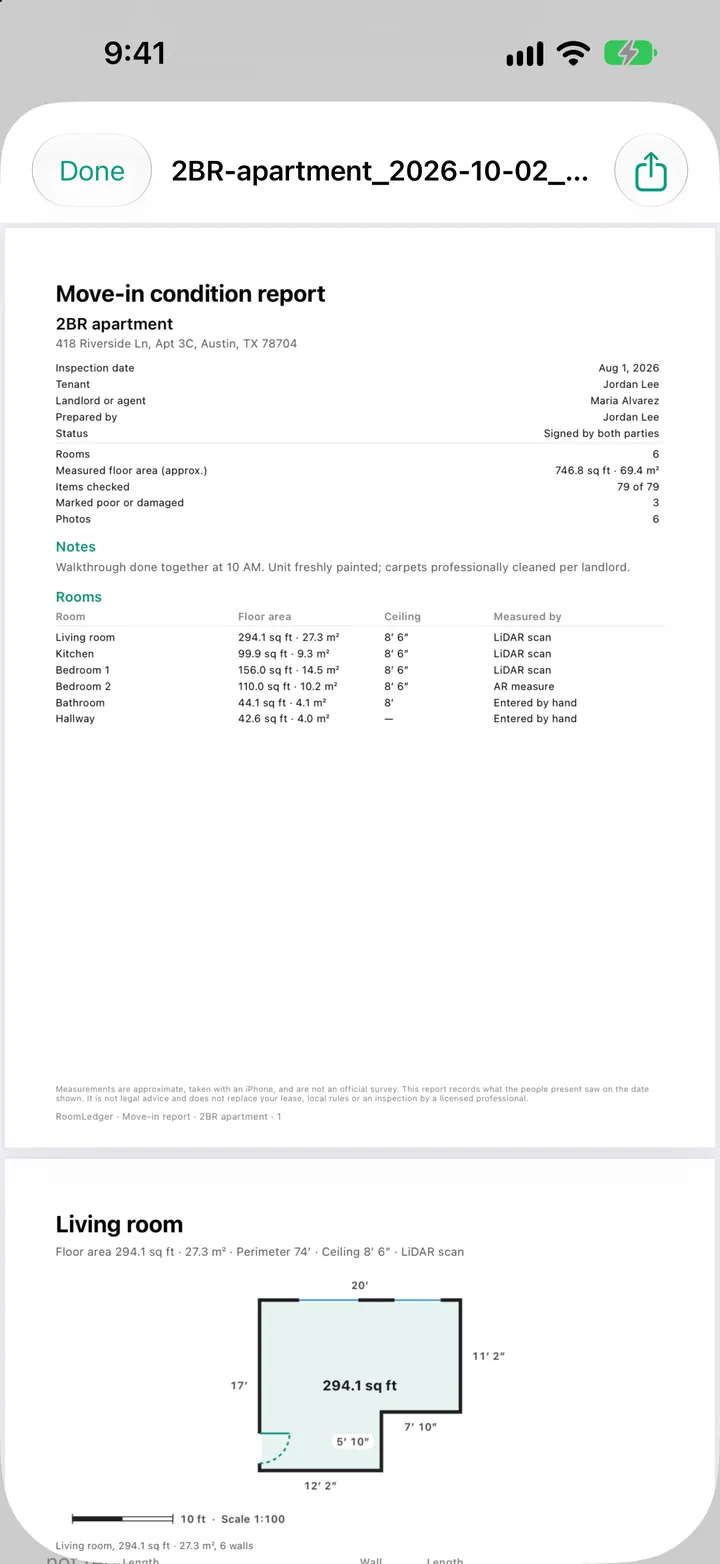
Inside the RoomLedger condition report PDF: rooms, photos and SHA-256 fingerprints
What a RoomLedger condition report PDF holds, from floor plans and numbered photos to SHA-256 photo fingerprints, a verification code, password and face blur.
ReadRoomLedger for landlords and property managers: several homes, one iPhone
How landlords and managers use RoomLedger: a home per unit, move-in, periodic and inventory walkthroughs, Prepared by, report branding and a Siri shortcut.
ReadRoomLedger privacy FAQ: how are photos, addresses and signatures handled?
Answer common questions about RoomLedger photos, addresses, signatures, RoomPlan, exports and on-device data.
Read guide