Verify a RoomLedger export: the ZIP, its SHA-256 manifest and Check an export
The Everything (ZIP) export holds reports, original photos and a manifest.json with a SHA-256 per file. Check it on the iPhone or with shasum on a Mac.
Short answer
Everything (ZIP) on the Export tab packs a home's reports, original photos, signatures, receipts, 3D scans and a manifest.json listing the SHA-256 of every file. The checksum RoomLedger shows when the ZIP is ready is the SHA-256 of manifest.json itself. Anyone can check the package later with Check an export in Settings, or file by file with shasum -a 256 on a Mac. Nothing is uploaded either way.
A PDF shows what was recorded. The archive is what you keep in case anyone ever asks whether that record was changed. RoomLedger builds it so the check doesn't depend on trusting the app: the manifest is plain JSON, and SHA-256 is a standard any computer can calculate.
What's in Everything (ZIP)
The archive is named after the home and the date, for example RoomLedger_2BR-apartment_2026-10-02.zip. Inside:
| Path | Contents |
|---|---|
README.txt | What each folder holds and how to check a file |
reports/ | Condition reports (PDF), one per walkthrough |
photos/ | Photos as printed (P01, P02 ...), originals of marked-up photos, room and item photos |
signatures/ | Signature images |
floor-plans/ | Floor plan drawings |
scans/ | 3D scans, every version: the model (USDZ), the detailed mesh (_mesh.usdz) and Apple RoomPlan data (_room.json), where available |
inventory/ | Inventory PDF and CSV |
receipts/ | Receipts attached to inventory items |
data/property.json | Everything above as structured data |
manifest.json | SHA-256 of every file, plus the hash of property.json |
Each entry in manifest.json has the file's path, its SHA-256 and its size in bytes. The manifest also records the app version, when the export was made, and a short note on what fingerprints do and don't show.
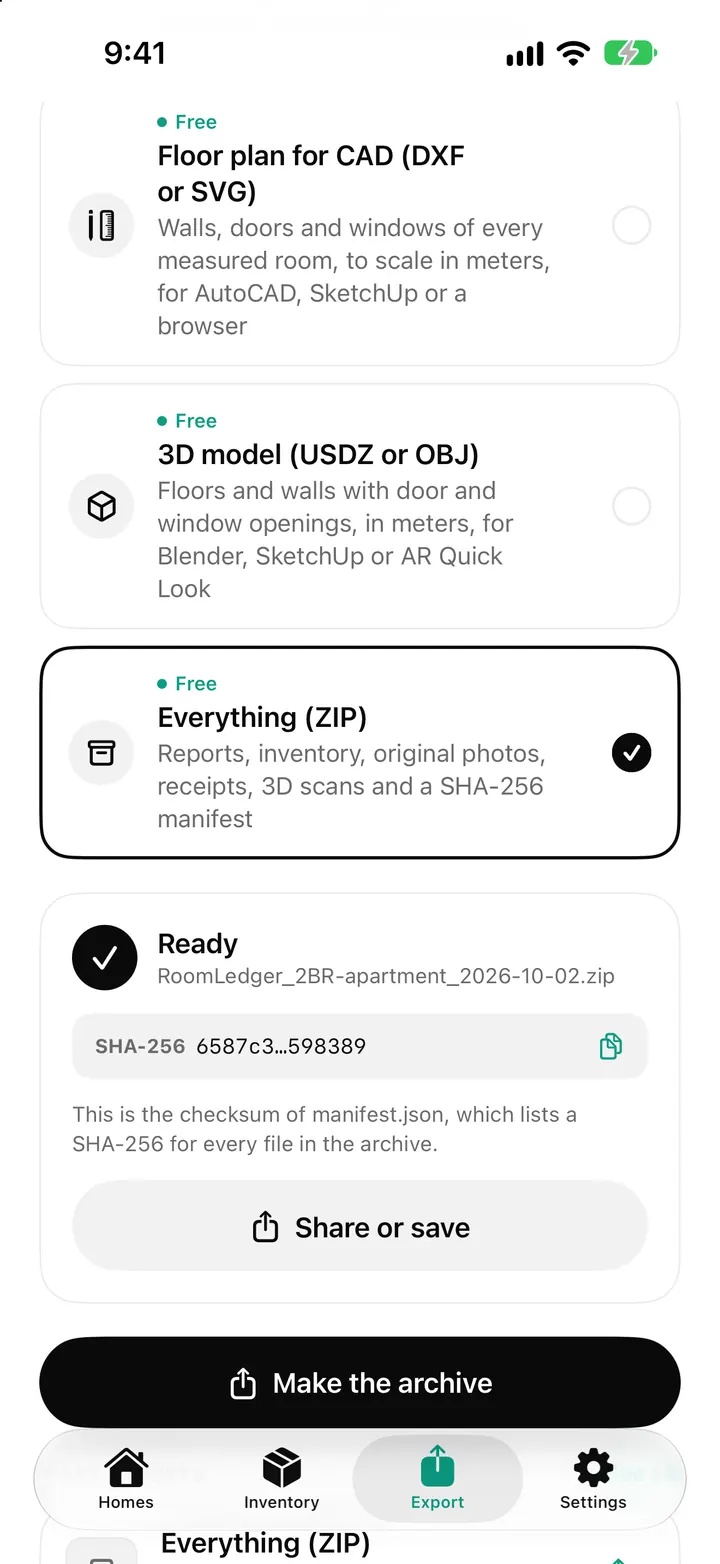
Make and verify an archive
- Open the Export tab, choose Everything (ZIP) and tap Make the archive.
- When it says Ready, tap the copy button to copy the SHA-256 checksum, and note it somewhere separate from the ZIP.
- Tap Share or save to put the ZIP in Files, on a Mac, or with the other party.
- Later, open Settings, then Check an export, and tap Choose a ZIP or .roomledger file.
- Pick the archive. RoomLedger hashes every file again and compares it with the manifest.
- Read the result: Match, or Changed since export with a list of the files that don't match.
The checksum you see when it's ready
The ready card says it plainly: this is the checksum of manifest.json, which lists a SHA-256 for every file in the archive. Because the manifest contains every file's fingerprint, one code covers the whole package. Change one photo and its line in the manifest no longer matches; change the manifest to hide that, and the manifest's own checksum changes.
That's why it's worth sending or storing the checksum separately, for example in the email that carries the ZIP. Every archive also stays under Past exports in Settings with its checksum, and Copy the SHA-256 checksum is there too.
What Check an export tells you
Check an export works on an ordinary ZIP or an unencrypted .roomledger file. It shows:
- Match with a line saying all files match the manifest, or Changed since export and how many files don't match
- File, Made (when the export was made) and Checksum (the manifest's SHA-256)
- Same checksum as the export made on a given date, if the archive matches one in your Past exports
- Under Files that don't match, each path marked Changed, Missing or Not in manifest
If the ZIP has no manifest.json, RoomLedger says it wasn't made by its export. An encrypted .roomledger file is checked when you open it with Move a home to another iPhone and its password: every file is checked as it's added.
Checking on a Mac, without RoomLedger
The other person doesn't need the app. On a Mac, unzip the archive and open Terminal in that folder:
- Run
shasum -a 256 manifest.json. The result should equal the checksum you copied when the archive was made. - Run
shasum -a 256on any file, for example a photo inphotos/, and find the same path in manifest.json. The two values should be identical.
The same works for the photo fingerprints printed in a condition report: compute the photo's SHA-256 and compare it with the Photo fingerprints table. See the condition report PDF for that table, and signing and amendments for how the report fingerprint ties into signatures.
FAQ
Is the ZIP a backup?
It holds everything about the home, including original photos. To bring a home back into RoomLedger on another iPhone, use Move a home to another iPhone, which makes a .roomledger file.
What if Check an export says a file is Missing?
That file is listed in the manifest but isn't in the ZIP, so the archive isn't complete as exported. Go back to the original ZIP, or make a new archive and compare it with Past exports.
Do I need a Mac to check a file?
No. Check an export works on the iPhone. Any computer that can compute SHA-256 works too; a Mac has shasum built in.
Does Check an export send the file anywhere?
No. Each file is hashed again on the iPhone and compared with its manifest. Nothing is uploaded.
Download RoomLedger and keep an archive you can check.
Keep reading
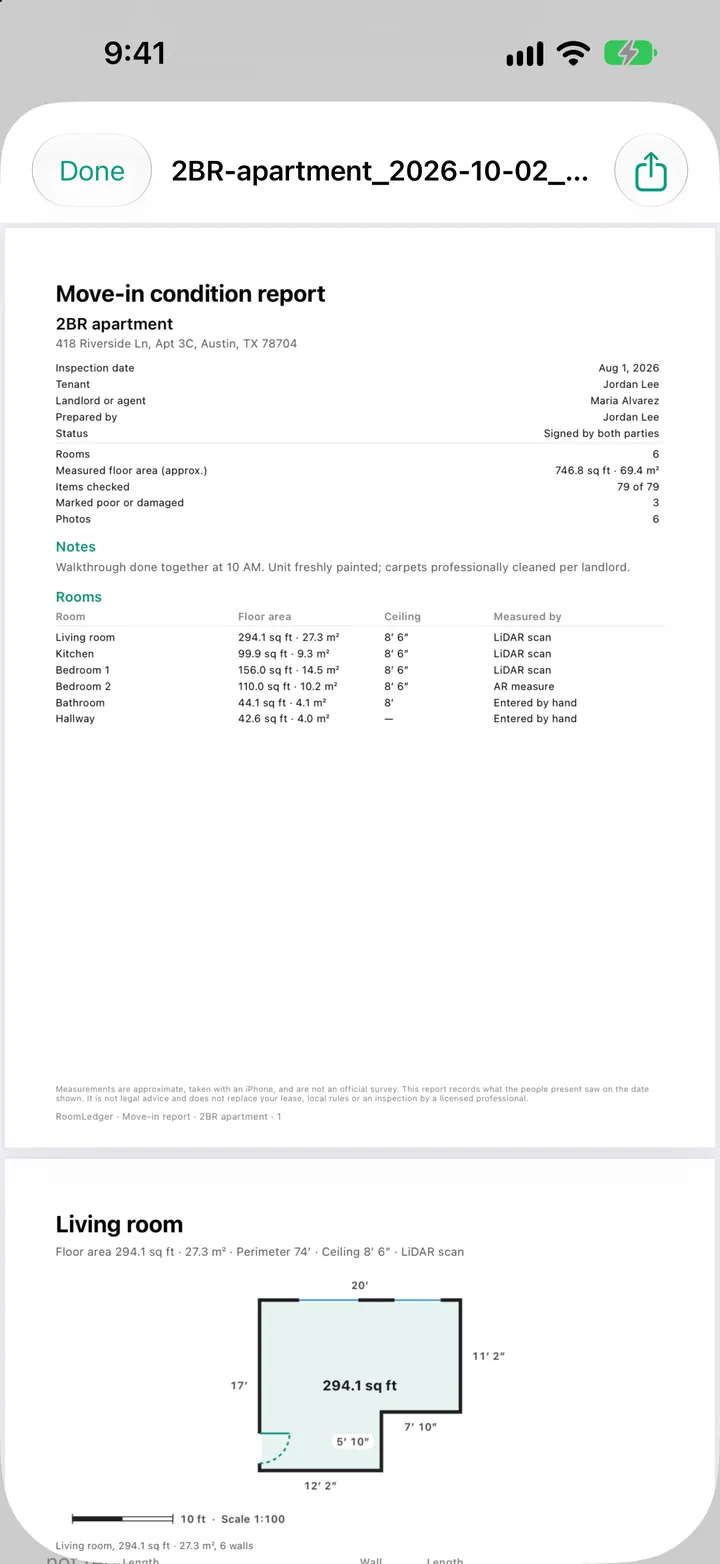
Inside the RoomLedger condition report PDF: rooms, photos and SHA-256 fingerprints
What a RoomLedger condition report PDF holds, from floor plans and numbered photos to SHA-256 photo fingerprints, a verification code, password and face blur.
Read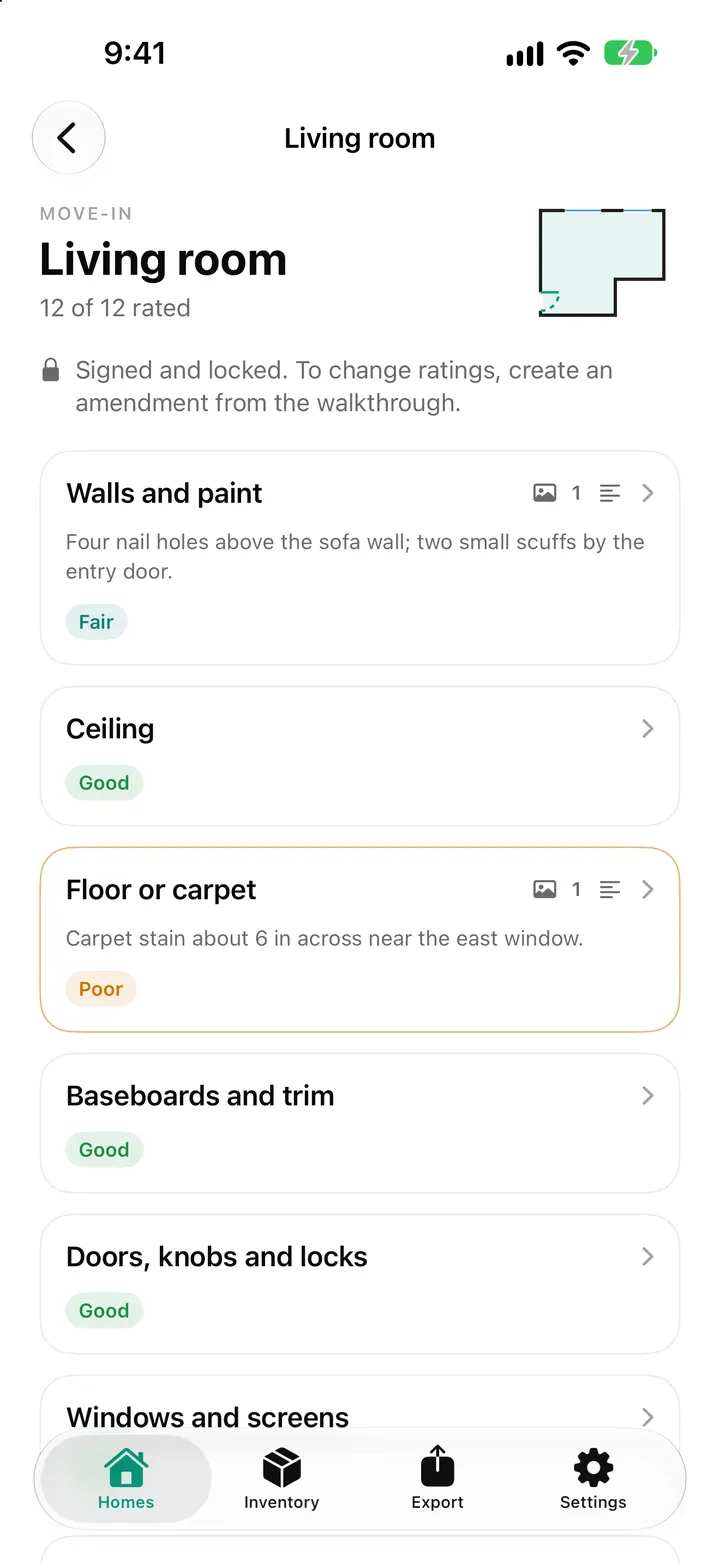
Sign a condition report on iPhone, then fix it with an amendment instead of an edit
Tenant and landlord sign the RoomLedger report on screen, which locks it. Later changes go into an amendment both sign again, and earlier versions stay on file.
Read
Do a move-in inspection with your iPhone: how RoomLedger records it
Walk each room with RoomLedger: rate every line, take photos, read the meters and sign a dated move-in condition report on your iPhone, with no account needed.
ReadHow to Use a ZIP Export to Back Up RoomLedger Records
Export, open, version and protect RoomLedger inventory, photos and reports in a testable ZIP backup.
Read guide