RoomLedger for landlords and property managers: several homes, one iPhone
How landlords and managers use RoomLedger: a home per unit, move-in, periodic and inventory walkthroughs, Prepared by, report branding and a Siri shortcut.
Short answer
In RoomLedger each unit is a home with its own rooms, walkthroughs, inventory and exports. Landlords and managers run Move-in, Move-out, Periodic and Inventory walkthroughs, sign them with tenants, and compare move-in with move-out. RoomLedger Pro adds unlimited homes, Report branding with your company and logo, the Survey pack and deposit charges. Everything stays on the iPhone or iPad you use.
Renters document one home at a time. Landlords and property managers document the same homes over and over, with a different tenant each time. RoomLedger is built around that cycle: a home keeps its rooms, plans and inventory, and each tenancy adds walkthroughs on top. This post walks through the parts that matter when you look after more than one place.
Tell RoomLedger who you are
During setup, RoomLedger asks how you're using it: I'm renting, I'm a landlord, I own my home or I manage properties. The answer shapes the empty screens and which walkthrough is suggested first; for landlords the idea is to walk units with tenants and keep a signed report for each, and for managers to keep reports, keys and meter readings for every unit in one place. Everything works for everyone, and you can change the choice later under I'm using it as in Settings.
Also set Your name in Settings. It is printed on reports as the person who prepared them, on the Prepared by line.
One home per unit
Tap Add a home for each unit. The types are Apartment, House, Condo, Townhouse, Room in a shared home and Other, so a room let in a shared house can have its own record. Rooms, floor plans and the inventory are set up once and reused by every walkthrough.
The free plan covers one home with every feature except the Pro items. A second unit needs RoomLedger Pro, which adds Unlimited homes and units. The built-in sample home doesn't count.
Four kinds of walkthrough
| Walkthrough | When | PDF title |
|---|---|---|
| Move-in | Handing over the keys | Move-in condition report |
| Move-out | Getting them back; started from the signed move-in | Move-out condition report |
| Periodic | Mid-tenancy visits | Periodic condition report |
| Inventory | A full record of a furnished unit's contents and condition | Inventory and condition report |
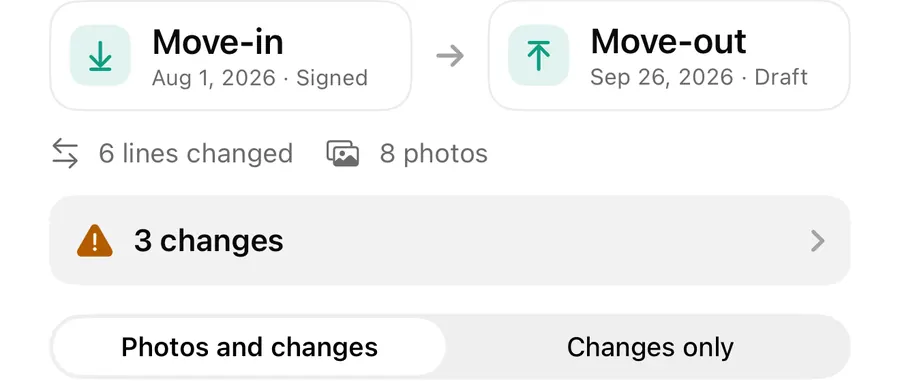
Each uses the same room checklists and ratings. A move-out copies the move-in lines, so the move-in vs move-out comparison can show what got worse, item by item.
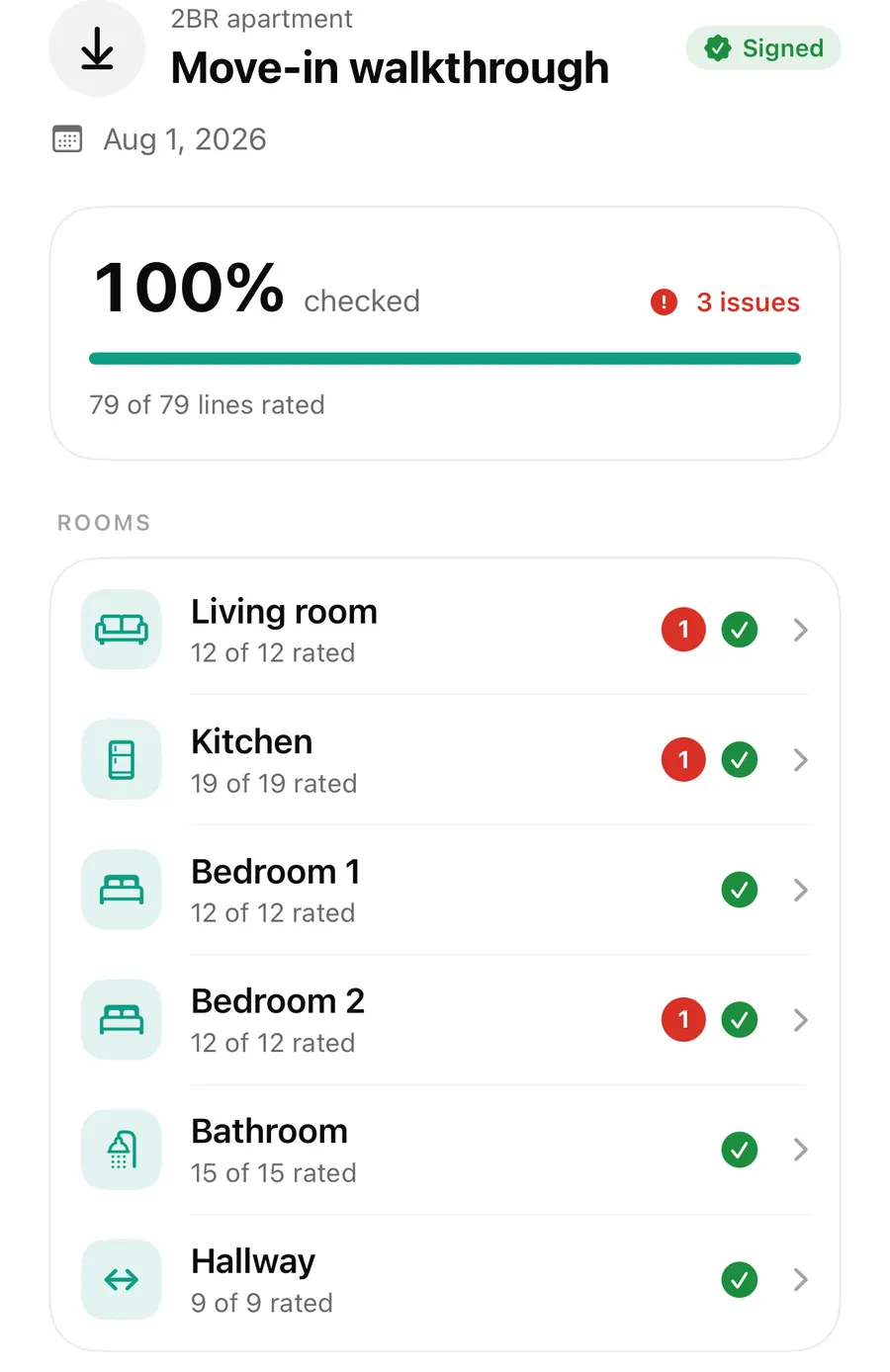
Hand over a unit
- Open the unit's home and tap Start a walkthrough, then Move-in.
- Go room by room with the tenant, rating each line and photographing anything below Good.
- Record Meters and keys: readings with photos and the number of keys handed over.
- Add the people: the Tenant and the Landlord or agent, plus a Witness or Agent if there is one.
- Both sign under Sign here. If the tenant isn't there, use Sign on another iPhone.
- Export the PDF and send it to the tenant. Set up the deposit card for the unit if you track it in RoomLedger.
Signing, locking and amendments are covered in signing and amendments.
Your company on every report
With RoomLedger Pro, Report branding in Settings puts your logo, company name and contact (phone, email or website) at the top of every page of condition reports, inventories and comparisons. It is printed in the top margin, so nothing in the report is covered. The logo is kept on the iPhone.
Deposits
Each home has a deposit card with the amount, the date paid, a deadline you set and reminders on this iPhone. RoomLedger doesn't know which local rules apply, so the deadline is yours to enter. With Pro you can list Charges against the deposit for each change in the comparison, record the tenant's response and export a Statement PDF. See deposit deadlines and charges.
Shortcuts, Siri and iPad
RoomLedger adds a Start inspection shortcut. Say Start inspection in RoomLedger or Start a walkthrough in RoomLedger to Siri, or run it from the Shortcuts app. It opens your walkthrough in progress, or starts the next one the home needs: a move-out after a signed move-in, otherwise a move-in.
RoomLedger also runs on iPad. Room scanning needs an iPad Pro with a LiDAR Scanner; other iPads measure with AR and by hand. Each device keeps its own data; there is no cloud sync. To hand a whole home to a colleague's iPhone, use Move a home to another iPhone, described in the privacy post.
FAQ
Can I manage several buildings in RoomLedger?
Yes, with RoomLedger Pro, which allows unlimited homes. Add each unit as its own home so its walkthroughs and inventory stay separate.
Can my tenant sign without being at the property?
Yes. Sign on another iPhone sends the walkthrough as a file over AirDrop or Files. Their iPhone checks it is the same data, they sign, and they send it back.
Can two people work on the same home at once?
Not in sync. There is no account or cloud, so each device holds its own copy. You can move a home from one iPhone to another as a file.
What happens to my units if Pro ends?
Nothing is deleted. One home stays editable; the others become View and export only until Pro is on again.
Download RoomLedger and set up your first unit before the next handover.
Keep reading
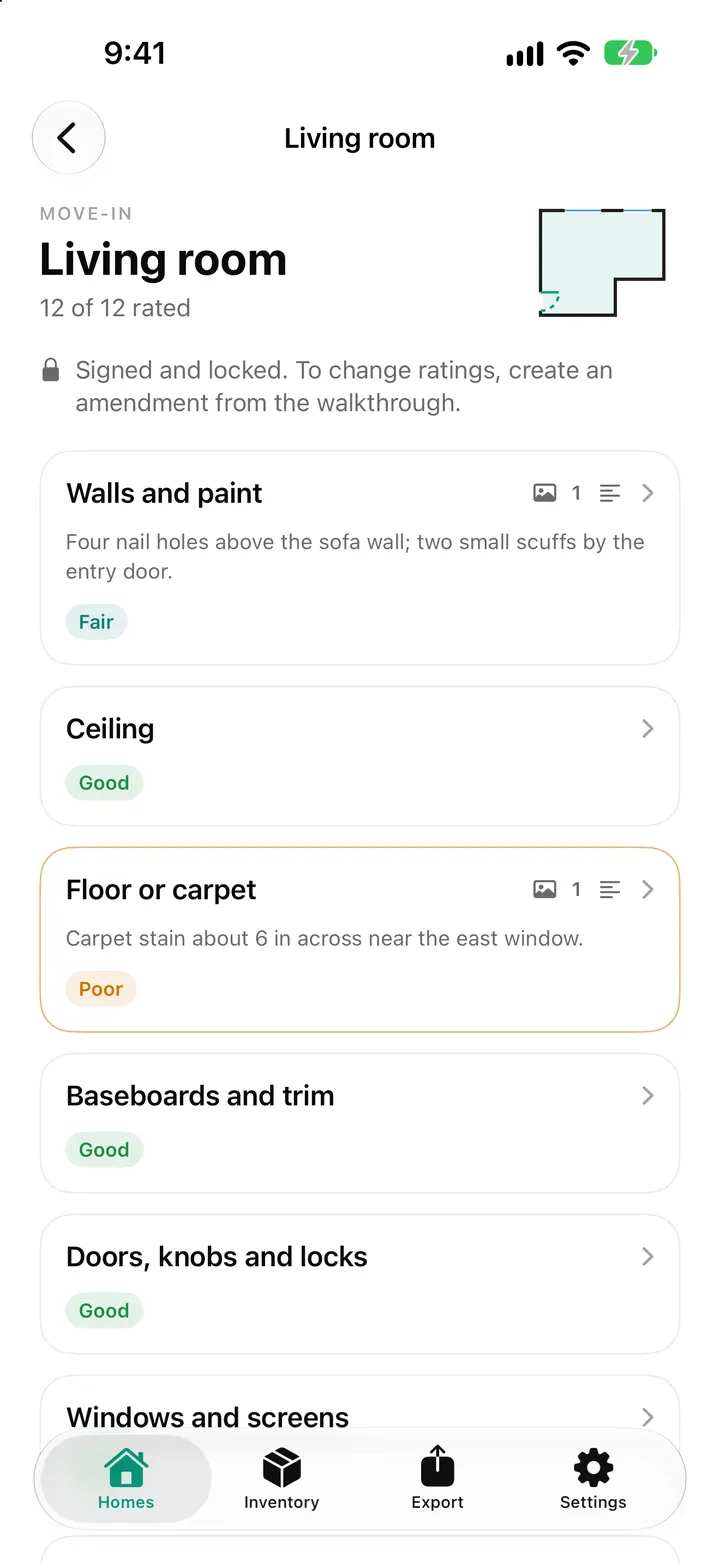
Sign a condition report on iPhone, then fix it with an amendment instead of an edit
Tenant and landlord sign the RoomLedger report on screen, which locks it. Later changes go into an amendment both sign again, and earlier versions stay on file.
Read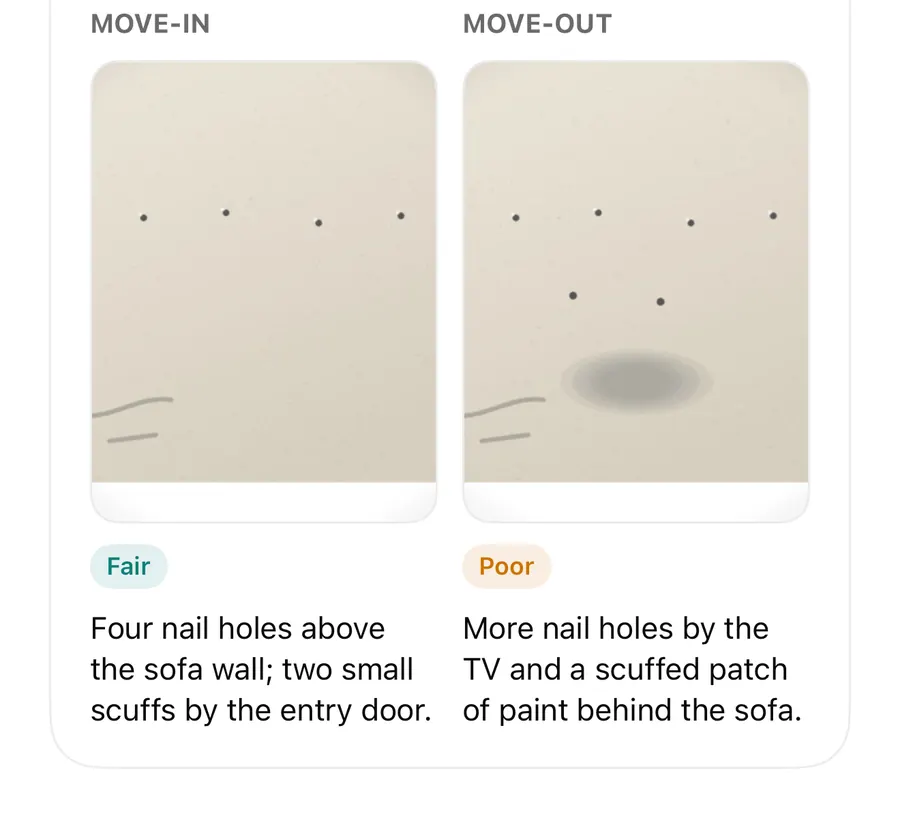
Track a security deposit in RoomLedger: your deadline, reminders and itemized charges
Record the deposit, count down to the deadline from your lease with iPhone reminders, then itemize charges against move-out changes and export a Statement PDF.
Read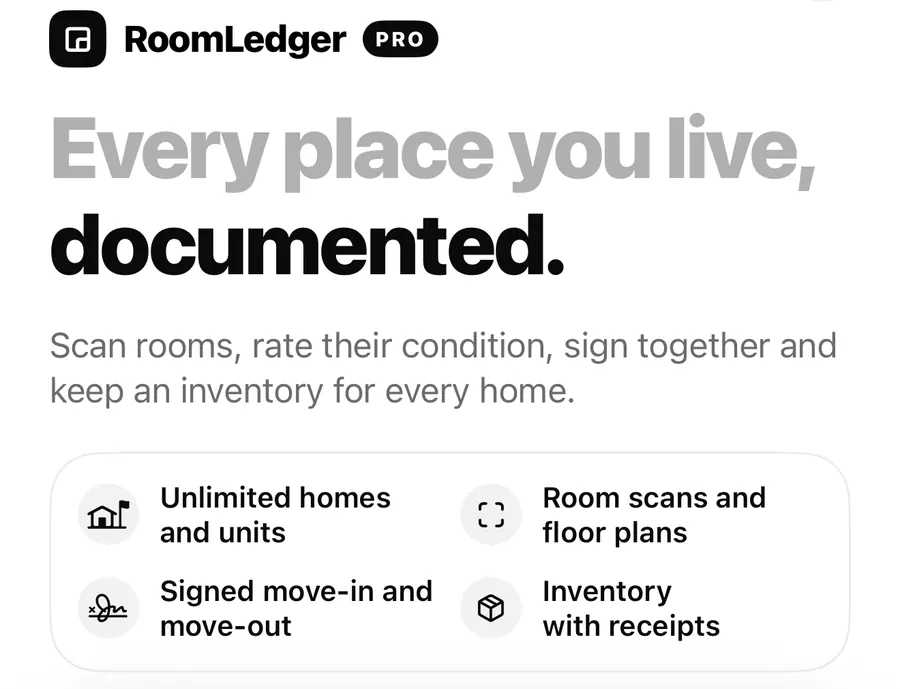
RoomLedger Free vs Pro: what's free, what Pro adds and how plans work
RoomLedger is free for one home with walkthroughs, scans, signatures, inventory and all exports. Pro adds unlimited homes, Survey pack, branding and charges.
ReadRoomLedger Move-In, Living and Move-Out Workflow
Use one RoomLedger property record across move-in, the tenancy and move-out with consistent rooms, dates, photos and exports.
Read guide