Compare move-in and move-out side by side, line by line, with photos from both days
RoomLedger pairs each move-out line with the signed move-in, shows both photos with their dates, flags what got worse and exports it all as a Comparison PDF.
Short answer
When you start a move-out from a signed move-in, RoomLedger copies the same rooms and checklist lines, so every move-out line has a partner. Move-in vs move-out then shows each line side by side with photos from both walkthroughs and their dates, and lists what counts as a change: lower ratings, new defects and move-in items missing at move-out. Comparison PDF exports the result.
A move-out inspection on its own says what the home looks like today. What people actually argue about is the difference: was that stain there before? RoomLedger answers that question directly by putting the two walkthroughs next to each other, line by line, instead of leaving you to flip between two PDFs.
Start the move-out from the move-in
On the home's page, tap Start a walkthrough and choose Move-out. If the home has a signed move-in for the current tenancy, the move-out starts from it: the same rooms, the same checklist lines in the same order, the same meters and the same key sets. Ratings, notes, photos, readings and signatures start empty, because those are what you're recording now.
Each copied line remembers the move-in line it came from, so the comparison pairs them exactly, including lines you added yourself with Add a line. Rooms added to the home since move-in get fresh checklist lines.
If the move-in was amended, the comparison uses the latest signed version, not the one it replaced. See signing and amendments.
Compare move-in with move-out
- On the home's page, tap Start a walkthrough and choose Move-out.
- Walk each room and rate every line, with photos for anything that isn't Good.
- Go back to the home and open Move-in vs move-out.
- Swipe through the lines, or pick Changes only to see just the lines whose rating changed.
- Tap the changes summary to see the full list.
- Tap Comparison PDF to make a file you can share.
Reading the comparison screen
The top shows both walkthroughs with their dates and status, for example a signed move-in and a draft move-out. Under that you see how many lines changed and how many photos there are, and a summary of the changes that count as worse.
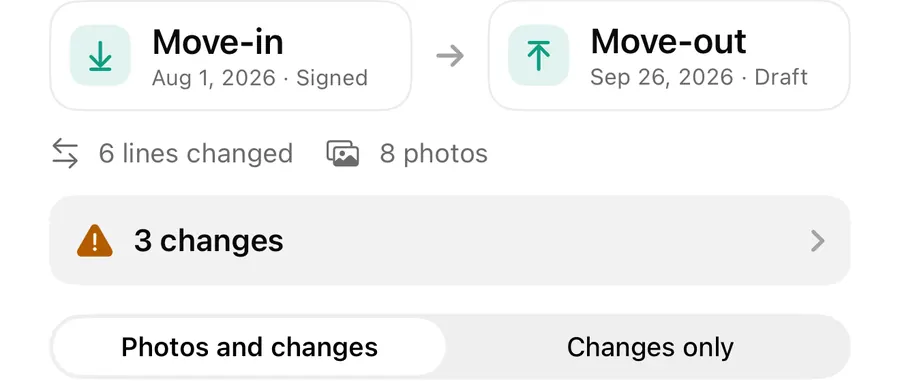
The switch has two views:
| View | What you see |
|---|---|
| Photos and changes | Every line that has a photo or a changed rating, at either walkthrough |
| Changes only | Only lines rated at both walkthroughs whose rating changed |
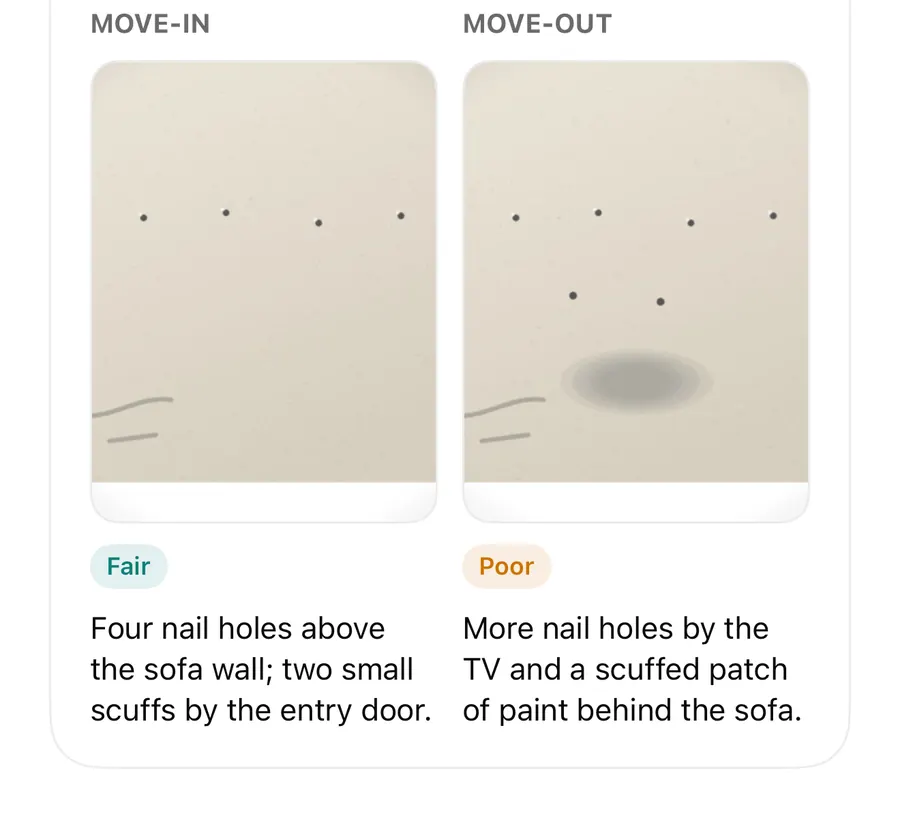
Each card shows the room and line, the ratings (for example Fair → Poor), the move-in photo and note on the left, and the move-out photo and note on the right. Swipe sideways, or use the arrows at the bottom, to go through them one by one.
What counts as a change
RoomLedger is deliberately narrow about this. A change is one of three things:
- A lower rating. A line rated at both walkthroughs that went down, shown as Changed from Good to Poor with how many levels it dropped. The scale runs Good, Fair, Poor, Damaged.
- A new defect. A line rated Poor or Damaged at move-out that had no move-in rating to compare with.
- Missing at move-out. An item on the move-in inventory that isn't there at move-out.
A line that got better isn't a change, and N/A lines are left alone. Items that appear only at move-out are listed separately as New at move-out. If nothing got worse, the summary says so: Nothing got worse, and every move-in item is still there.
The app doesn't decide whether a change is normal wear or damage, and it doesn't write summaries for you. It shows the record side by side; the judgment stays with the people involved.
The Comparison PDF
Comparison PDF makes a US Letter PDF titled Move-in vs move-out. It lists the home, the person who prepared it, the number of changes, and a short Move-in fingerprint and Move-out fingerprint: verification codes taken from each walkthrough's report fingerprint, so anyone can match the comparison to the two full reports. Each change then gets its own entry with the ratings, both notes and photos from both walkthroughs with the date they were taken.
Send it with the two signed condition reports. For what each report contains, see the condition report PDF post.
FAQ
Does the move-in have to be signed?
For the move-out to start as a copy of it, yes. RoomLedger compares a move-out with the move-in it was started from, or else the newest signed move-in before it.
Can I compare without photos?
Yes. Ratings alone are enough to find lower ratings and new defects. Photos make each change much easier for the other person to accept or question.
Does RoomLedger say whether damage is normal wear?
No. It shows the ratings, notes and photos from both days. What counts as normal wear depends on your lease and local rules.
Can I share the comparison with someone who doesn't have the app?
Yes. The Comparison PDF opens anywhere, and you can send the signed reports alongside it.
Download RoomLedger and keep the move-in you'll want at move-out.
Keep reading
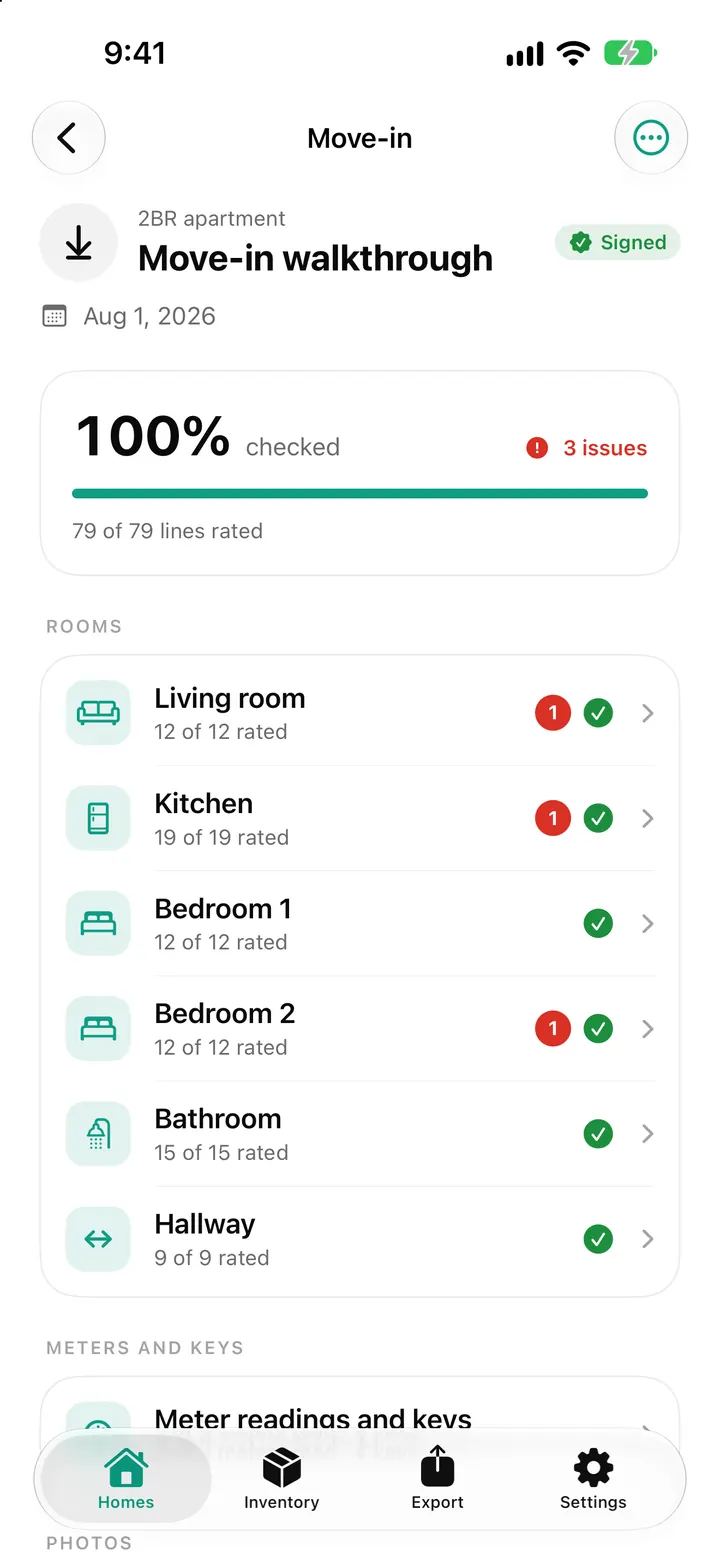
Do a move-in inspection with your iPhone: how RoomLedger records it
Walk each room with RoomLedger: rate every line, take photos, read the meters and sign a dated move-in condition report on your iPhone, with no account needed.
ReadTrack a security deposit in RoomLedger: your deadline, reminders and itemized charges
Record the deposit, count down to the deadline from your lease with iPhone reminders, then itemize charges against move-out changes and export a Statement PDF.
Read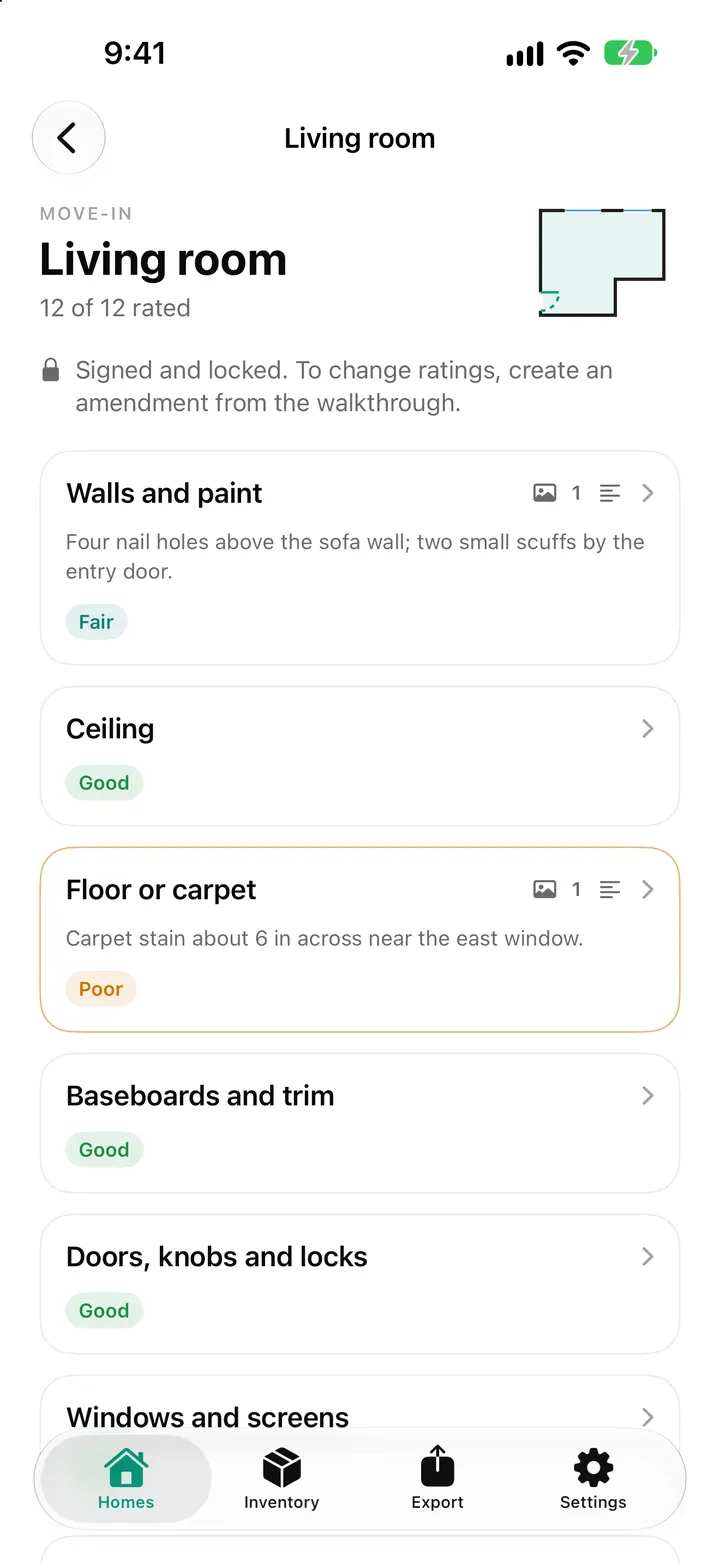
Sign a condition report on iPhone, then fix it with an amendment instead of an edit
Tenant and landlord sign the RoomLedger report on screen, which locks it. Later changes go into an amendment both sign again, and earlier versions stay on file.
ReadMove-out checklist: what to inspect before leaving a rental
Compare move-in photos, room condition, meters, keys, cleaning and repairs before producing a final RoomLedger report.
Read guide