Record meter readings and keys in RoomLedger, with the camera reading the digits
Log electric, gas and water meters and every key at move-in and move-out. RoomLedger reads meter digits with the camera, keeps the photo and you confirm it.
Short answer
Every RoomLedger walkthrough has a Meters and keys page. You add electric, gas, water or other meters, type the reading or tap Read the meter with the camera to have the digits read for you, and check the number before it's saved. The meter photo stays with the reading. Keys get a name, a count and photos, and all of it prints in the condition report next to the signatures.
Utility bills and missing keys are two of the most common small arguments at the end of a tenancy. Both are easy to settle if someone wrote the numbers down on the day, with a photo. RoomLedger makes that part of the walkthrough itself, so the readings and keys sit in the same signed report as the room ratings instead of on a note in someone's phone.
What's on the Meters and keys page
Open a walkthrough and scroll past the rooms to Meters and keys. A new walkthrough already has an electric, a gas and a water meter, plus two key sets (front door and mailbox), so most homes need only small changes. Remove what the home doesn't have and add what it does.
| Meter | Default unit | What you fill in |
|---|---|---|
| Electric | kWh | Reading, location, photo |
| Gas | CCF | Reading, location, photo |
| Water | gal | Reading, location, photo |
| Other | none (type your own) | Reading, unit, location, photo |
Each meter card has a Reading field, a Unit field you can change, and a Location field (Where it is, e.g. utility closet), which helps whoever reads it next time find it. The screen's own advice is short: Photograph each meter so the reading and date can't be disputed.
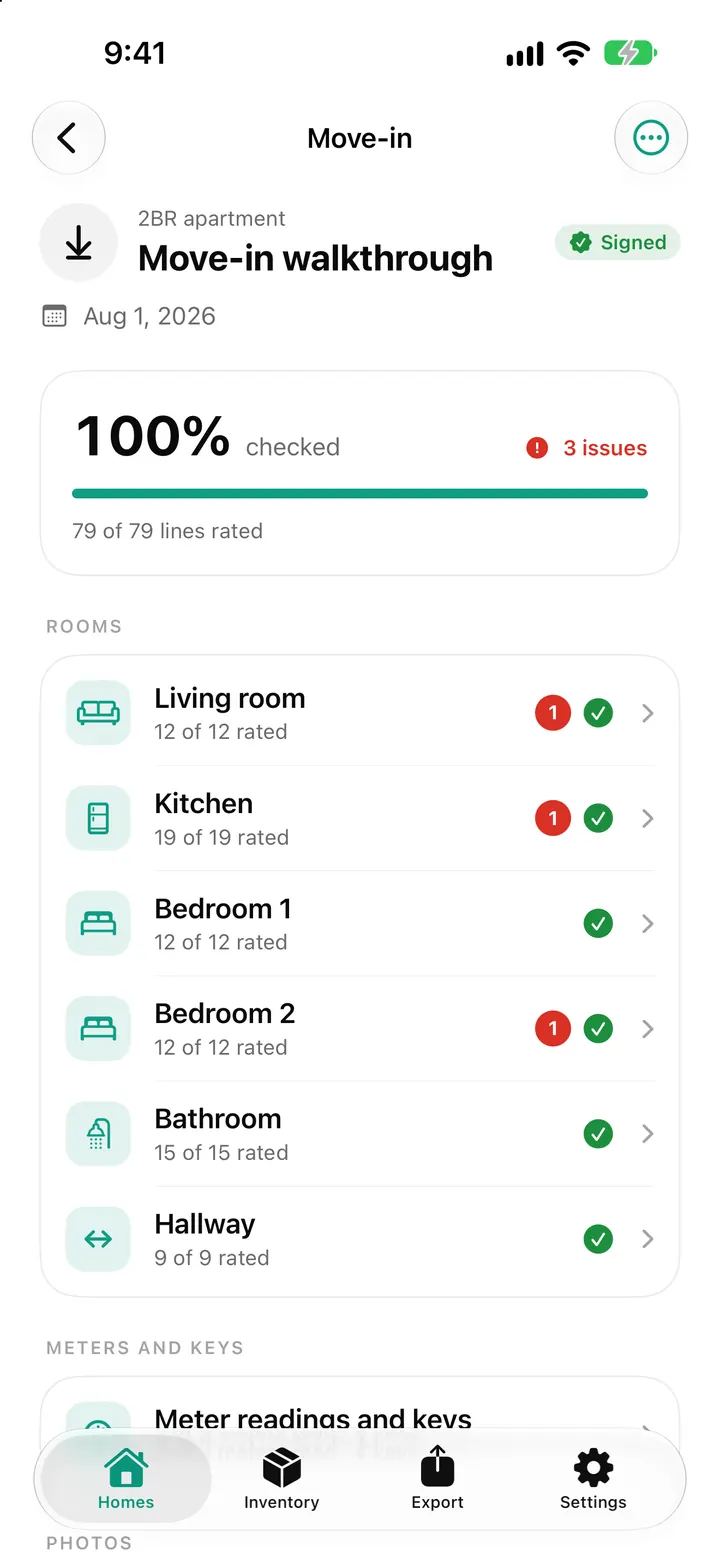
Reading a meter with the camera
Typing a long, faded number is where mistakes creep in. On iPhones that can read text live, each meter card shows Read the meter with the camera.
Read a meter with the camera
- In Meters and keys, find the meter card and tap Read the meter with the camera.
- Point at the digits on the meter. RoomLedger picks out the numbers it can see.
- If it picked the wrong one, tap the right number on screen, then tap Use this reading.
- On Check the reading, compare the number with the meter and fix any digit.
- Tap Save reading. The photo is saved with the meter. Tap Scan again if the light was bad.
Nothing is saved on its own. The camera only suggests a number; you confirm it. If the meter already had a reading, the check screen tells you which value it replaces.
When live reading isn't available
Some iPhones can't read text live, and a dim utility closet can defeat any camera. In that case, take an ordinary photo on the meter card. If the meter has no reading yet, RoomLedger reads the newest photo and shows Reading on the photo with Use and Not it. You can also tap Read the meter from the photo at any time. If nothing readable is found, the card says No reading found and you type it in.
Keys, counts and photos
Under Keys, each row is a key set with a name (e.g. Front door) and a count you set with the plus and minus buttons. Add rows for anything that changes hands: garage remote, building fob, mailbox, storage unit. Each set can have photos, which is the simplest way to show what was handed over, cut and all.
At move-out you don't start from scratch. A move-out started from a signed move-in copies the same meters (kind, unit and location) and key sets (names and counts), with the readings left blank. You read the meters again and correct the key counts to match what is actually being returned. The move-out comparison post explains how the rest of the walkthrough lines up.
Signing without a reading
Sometimes a meter is locked in a basement room or the gas isn't connected yet. RoomLedger lets you sign anyway, but asks first. When a reading is missing, the signatures card shows a note naming the meter, and tapping Sign opens Sign without every meter reading? with two choices: Sign anyway or Add readings first. The message explains why it asks: readings on the day settle who pays for what later.
If you skip one, say why in the walkthrough notes so the report explains the gap. See signing and amendments for what happens after both people sign.
How meters and keys appear in the report
The condition report PDF has a Meters, keys and signatures page. Meter readings print as a table with the meter, the reading, its location and photo numbers; keys print as a list with their counts. Meter and key photos are numbered with the rest of the report's photos and appear in the Photo fingerprints table with a SHA-256 fingerprint, so a later edit to the photo file would show.
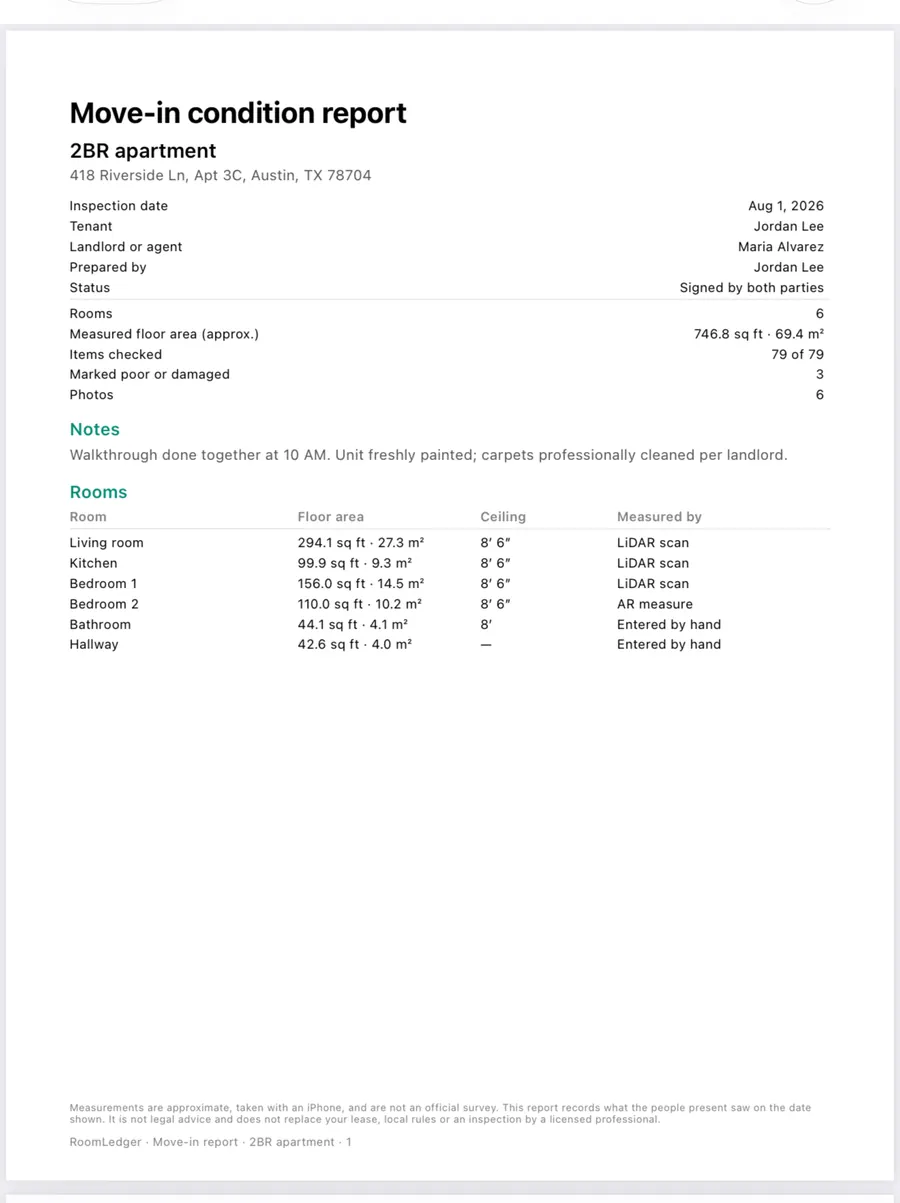
The meter readings and keys are also part of the report fingerprint, the SHA-256 of the report data. Change a reading after signing and the fingerprint no longer matches what was signed. The condition report PDF post covers this in detail.
FAQ
Does the camera reading work on every iPhone?
The live Read the meter with the camera button appears only on iPhones that can read text live. On others, take a photo on the meter card and use Read the meter from the photo, or type the number.
Is the meter photo kept?
Yes. The photo is saved with the meter, numbered in the report and listed with its SHA-256 fingerprint.
Can I add a meter that isn't electric, gas or water?
Yes. Choose Other and type your own unit, for example for an oil tank gauge or a sub-meter.
Do I have to re-enter my meters at move-out?
No. A move-out started from the signed move-in copies the meters and key sets; you only enter the new readings and correct the counts.
Download RoomLedger and photograph your meters before you unpack.
Keep reading
Do a move-in inspection with your iPhone: how RoomLedger records it
Walk each room with RoomLedger: rate every line, take photos, read the meters and sign a dated move-in condition report on your iPhone, with no account needed.
Read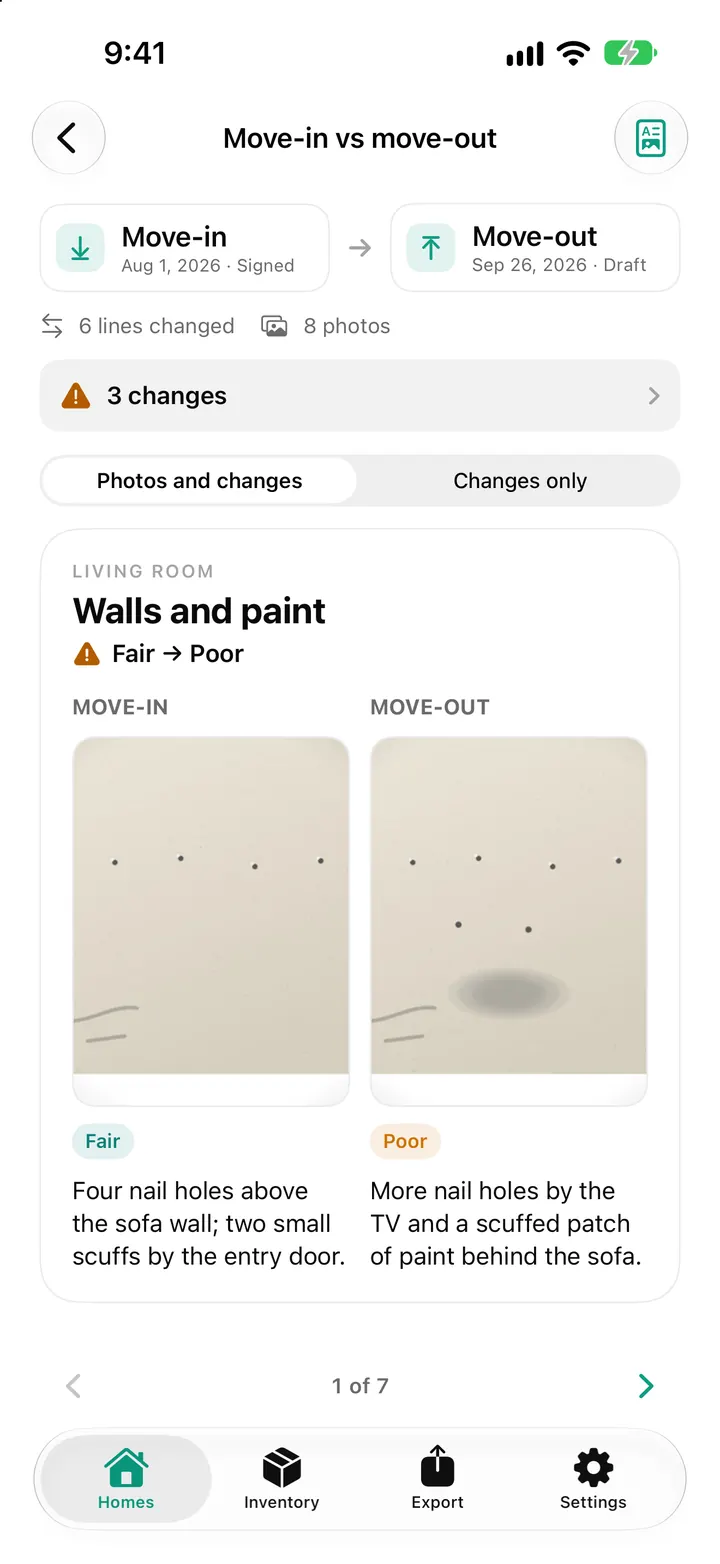
Compare move-in and move-out side by side, line by line, with photos from both days
RoomLedger pairs each move-out line with the signed move-in, shows both photos with their dates, flags what got worse and exports it all as a Comparison PDF.
Read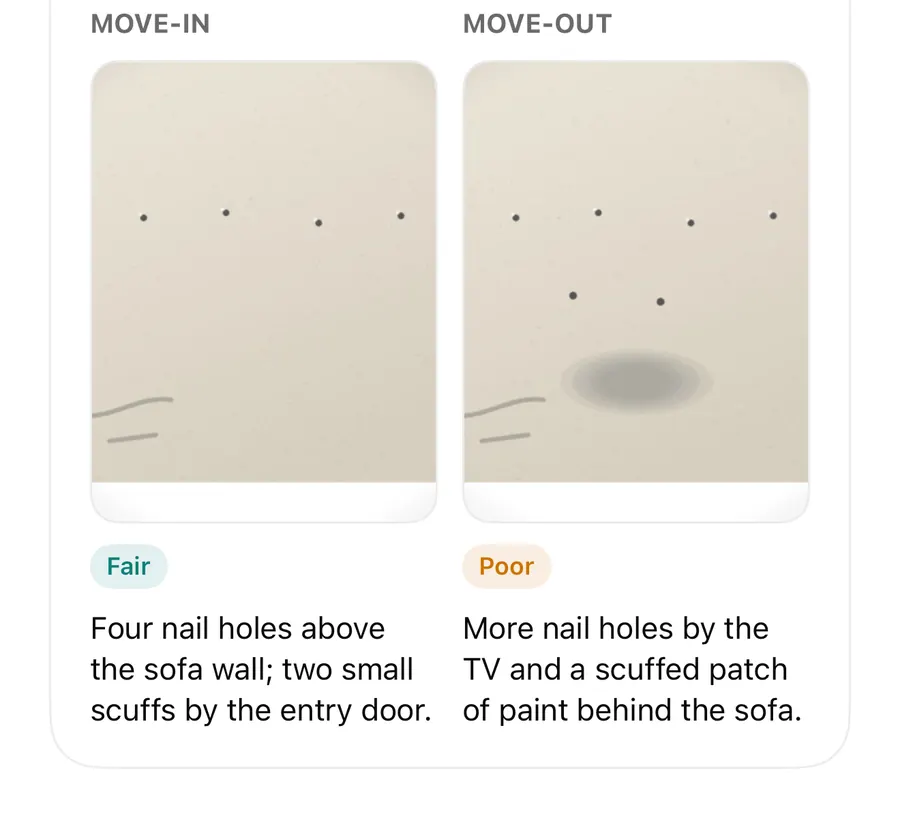
Track a security deposit in RoomLedger: your deadline, reminders and itemized charges
Record the deposit, count down to the deadline from your lease with iPhone reminders, then itemize charges against move-out changes and export a Statement PDF.
ReadHow to record meter readings at move-in and move-out
Photograph and record electricity and water meters at move-in or move-out with dates, units and context in RoomLedger.
Read guide