Build a home inventory for insurance on your iPhone with RoomLedger
List what you own room by room in RoomLedger: photos, values, serial numbers and receipts, a running total with gaps flagged, and inventory PDF and CSV exports.
Short answer
RoomLedger's Inventory tab keeps a list of what you own in each home, with photos, what you paid, the purchase date, serial numbers and receipts. It adds up a total value, tells you which items are missing a photo, a serial number or a value, and exports an Inventory (PDF) and an Inventory spreadsheet (CSV). Everything stays on your iPhone.
Most people only think about a home inventory after a burst pipe or a break-in, when the question is suddenly "what exactly did you have, and what was it worth?" Answering that from memory is hard. RoomLedger lets you build the list ahead of time, in the same app where you record the home's rooms and condition, so belongings sit next to the room they're in.
What the Inventory tab holds
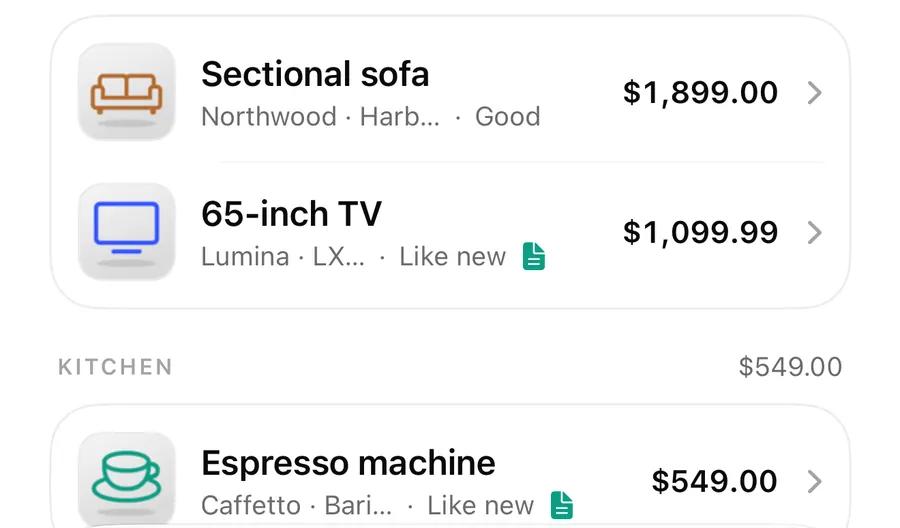
The tab describes itself plainly: build a home inventory with values and receipts for insurance. Each item belongs to a home and, optionally, to a room. On a room's page the items show up under Belongings here, so a walkthrough of the living room also reminds you what's in it.
For each item you can record:
| Field | What goes in it |
|---|---|
| Item | A short name, such as 65-inch TV |
| Photos | One or more pictures of the item |
| What you paid | The price in US dollars |
| Purchased | The purchase date |
| Quantity | For sets, such as four dining chairs |
| Condition | Poor, Fair, Good, Like new or New |
| Store | Where you bought it |
| Make and serial | Brand, Model and Serial number |
| Receipt | A photo, a scanned page or a PDF |
There are ten categories: Electronics, Appliances, Furniture, Kitchen, Jewelry and watches, Clothing, Tools, Sports and outdoors, Art and decor and Other.
Totals and the gaps that matter
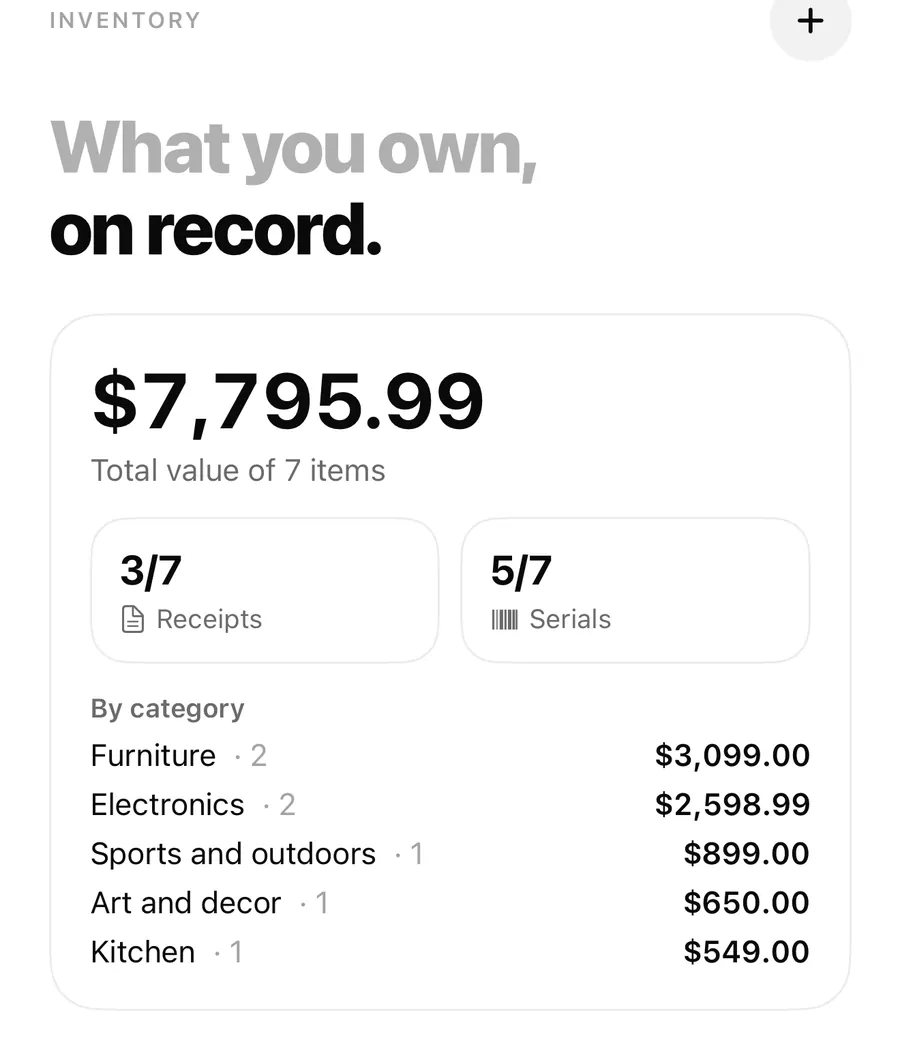
At the top of the tab you see the total value and how many items have a receipt and a serial number. Below it, values are broken down by category. RoomLedger also counts the weak spots, for example 2 items missing a value or 1 item missing a photo, so you know where to spend ten minutes before the list is useful.
Those gaps are the part worth fixing. A photo shows the item existed and what state it was in; a serial number ties it to one specific unit; a receipt shows what it cost. You don't need all three for a lamp, but for a laptop, a TV or a bike they are the details people tend to wish they had.
Build your first inventory
- Open the Inventory tab and tap Add an item. Give it a name, a category and a room.
- Add a photo of the item where it stands.
- Enter What you paid, the Purchased date and the Store if you know them.
- Under Make and serial, tap Read label to fill in the brand, model and serial number from a photo of the label, or type them.
- Under Receipt, scan the receipt, choose a photo or attach a PDF.
- Repeat for the items that would be hardest to replace, then check the gap counts at the top of the tab.
Reading labels and receipts has its own post: label and receipt reading.
Pin items on the floor plan
If a room has been measured, an item can be placed on its plan with Pin on the floor plan. Pins are numbered in the inventory PDF under Where items are, so someone reading the report can see that item 3 is the sofa against the north wall. If you move the item to another room, its pin is cleared, because pins belong to one room's plan. Floor plans come from a LiDAR room scan or from measuring by hand.
Exports: PDF for a claim, CSV for a spreadsheet
Two inventory exports sit on the Export tab, and both are free on every plan:
- Inventory (PDF): every item with value, serial number and photos, for insurance or a claim. Items are grouped by room with a subtotal for each room and a total at the end. The PDF also lists a SHA-256 fingerprint for each photo and receipt, and notes that values are the owner's own estimates and that serial and model numbers read from labels may need checking.
- Inventory spreadsheet (CSV): one row per item, which opens in Numbers, Excel or Google Sheets.
The Everything (ZIP) export also includes the inventory along with the original photos and receipts. That's the copy to keep somewhere other than your iPhone; see verifying an export.
Inventory for renters, owners and landlords
Renters use the inventory for their own belongings, so a contents claim has a list behind it. Owners use it for the whole house, including appliances that stay with it. Landlords letting a furnished unit can list the furniture and appliances they provide; an Inventory walkthrough then produces an Inventory and condition report for the whole place. At move-out, items on the move-in inventory that are no longer listed show up as Missing at move-out in the move-in vs move-out comparison.
FAQ
Does RoomLedger value my belongings?
No. Values are what you type in, usually what you paid. The app adds them up and shows the total, but it doesn't appraise anything or suggest replacement costs.
Can I keep an inventory without measuring rooms?
Yes. Items only need a home. Rooms and floor plans are optional; you need a measured room only if you want to pin items on its plan.
Which file do I send to my insurer?
The Inventory (PDF) is made for reading: items, values, serials and photos. If they ask for a spreadsheet, send the CSV. Ask your insurer which they prefer.
What happens to receipts if I delete an item?
Deleting an item removes its photos and receipt from this iPhone. Make an Everything (ZIP) export first if you want to keep them.
Download RoomLedger and start with the five things you'd least like to replace.
Keep reading
Read serial numbers from labels and fill in receipts with RoomLedger
Photograph a product label to fill in brand, model and serial number, scan a receipt for the date, total and store, all read on your iPhone and checked by you.
Read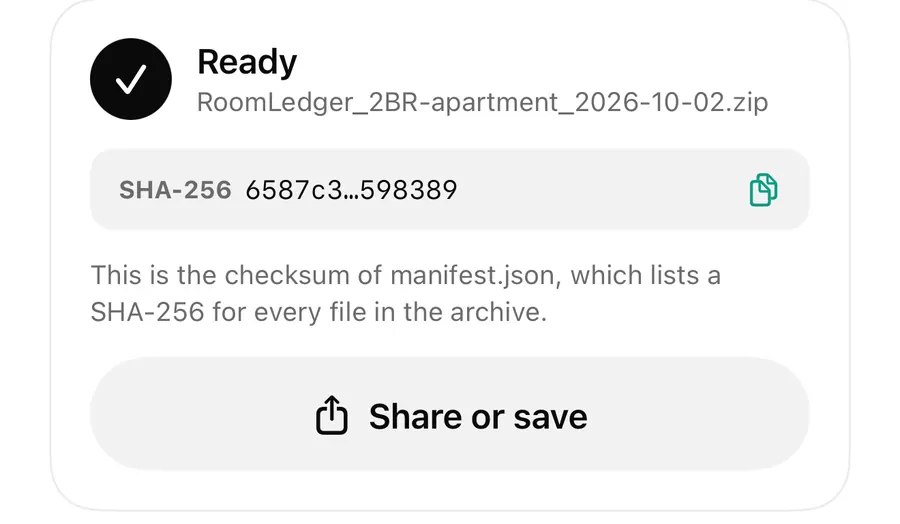
Verify a RoomLedger export: the ZIP, its SHA-256 manifest and Check an export
The Everything (ZIP) export holds reports, original photos and a manifest.json with a SHA-256 per file. Check it on the iPhone or with shasum on a Mac.
Read
RoomLedger Free vs Pro: what's free, what Pro adds and how plans work
RoomLedger is free for one home with walkthroughs, scans, signatures, inventory and all exports. Pro adds unlimited homes, Survey pack, branding and charges.
ReadCreate a home inventory for insurance with RoomLedger
Build a RoomLedger home inventory with rooms, photos, serial numbers and receipts while understanding the limits of valuation.
Read guide