Scan a room with LiDAR on iPhone: floor plan, area and ceiling in RoomLedger
Scan a room with your iPhone's LiDAR Scanner in RoomLedger: check the scan, turn off mistakes, then keep a floor plan with area, perimeter and ceiling height.
Short answer
On an iPhone or iPad Pro with a LiDAR Scanner, open a room in RoomLedger and tap Scan with LiDAR. Walk slowly around the edges of the room, then review what the scan found and turn off anything it got wrong. You get a floor plan with doors and windows, the floor area, perimeter and ceiling height, and a 3D model. The figures are approximate and are not an official survey.
A floor plan makes a condition report easier to read: the other person can see which wall the stain is on and how big the room is. RoomLedger uses Apple RoomPlan to build that plan from a short walk around the room. The scan, the plan and the 3D model stay on your iPhone.
What a scan gives you
A scan takes about a minute per room. When it is saved, the room page shows:
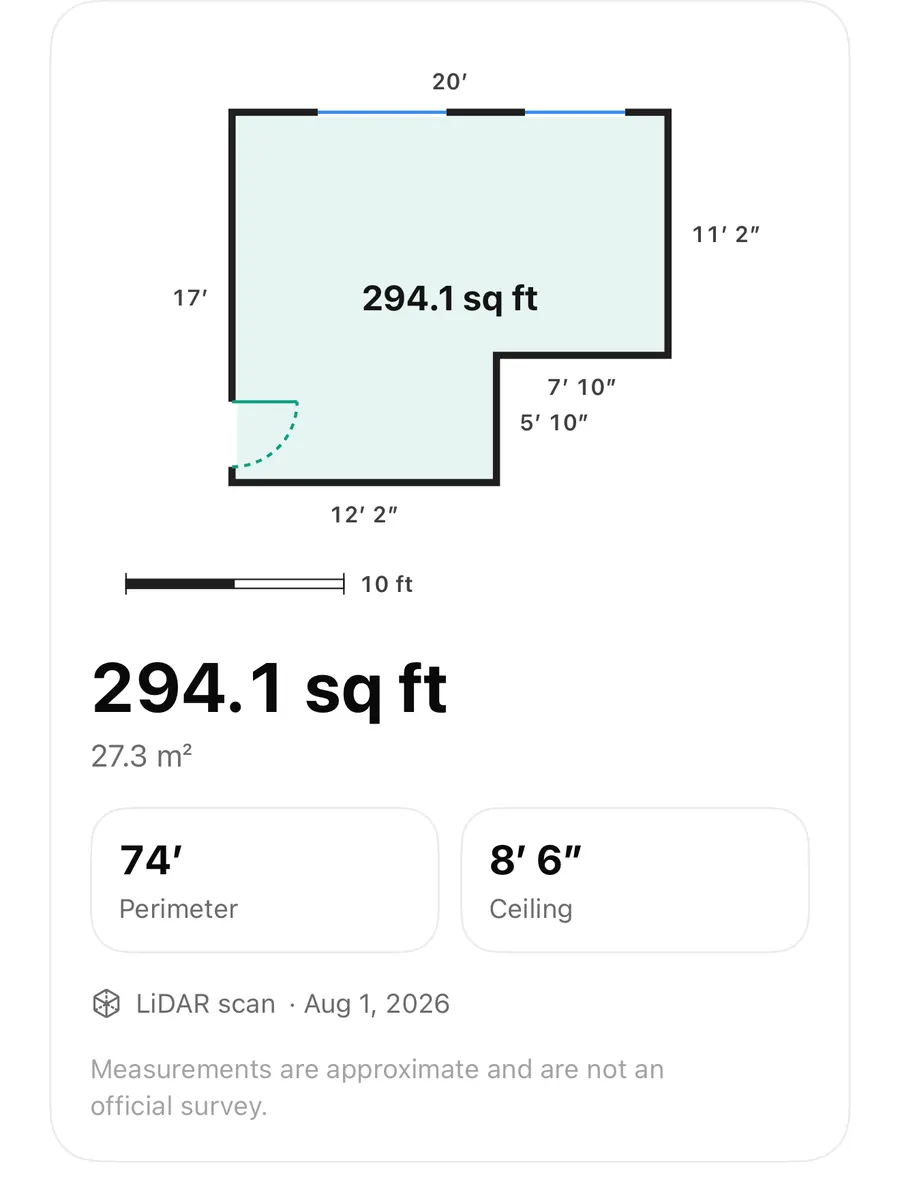
- The floor plan, drawn to scale with wall lengths, doors and windows, and a scale bar.
- Floor area, in square feet by default, with the other unit underneath if you want it.
- Perimeter and Ceiling height.
- Where it came from: the plan is labeled LiDAR scan with the date, so anyone reading the report knows how the room was measured.
- A 3D scan of the room, kept as its own version. See 3D scan versions and AR.
Before you scan
Tapping Scan with LiDAR opens a short Before you scan card with three standing tips: turn on the lights and open the curtains, open the doors so the scan sees where they are, and clear a path along the walls.
RoomLedger also remembers how the last scan went wrong, if it did. If the room was too dark, the scan missed walls, it stopped early or the phone ran out of space, that tip comes first. If less than 1 GB is free, you see a warning that the scan may not save, and the button changes to Scan anyway.
Scan a room
- Open the home, then the room, and tap Scan with LiDAR.
- Read the Before you scan tips and tap Start scanning.
- Walk slowly around the edges of the room, pointing at the walls and floor. Pause on each wall for a moment.
- Tap Done scanning. RoomLedger builds the floor plan.
- Check the result, then tap Review and save, or Scan again if it looks wrong.
- On Review scan, turn off anything the scan got wrong and confirm the room type.
- Tap Save to the room. The plan, figures and 3D model appear on the room page.
Review the scan before it's saved
RoomPlan is good at walls and floors, but it can mistake a mirror for a window or a box for a table. Review scan lists every door, opening, window and piece of furniture it found, each with its size and a switch. Turn one off and it is taken out of the plan, the saved scan data and the 3D model. Walls and floor aren't listed, so the measured area never changes during review.
The review also shows the room type with the one the scan points to marked: a toilet or a bathtub points to a bathroom, a bed to a bedroom. Pick another type if the scan guessed wrong; the type sets the checklist for new walkthroughs.
Furniture and appliances the scan found can become inventory drafts under Add to inventory. Turn off what you don't want added; you can add values and photos later in the Inventory tab.
When a scan doesn't work
Some rooms are hard to scan: very dark, very large, long and narrow, or open to the next space. If the scan can't find enough walls, RoomLedger says so and offers Scan again. On LiDAR iPhones it also offers Measure corners on the LiDAR mesh, where you tap the floor corners yourself on the depth map LiDAR builds. That works on bare walls and in rooms too big or open for RoomPlan. More in measuring without a scan.
Fix a door, window or ceiling by hand
A scan can misjudge a door height or a window sill. After a room is measured, Adjust a door, window or ceiling lets you type the size from a tape measure. The walls stay as measured, so the floor area doesn't change. The old size stays in the room's history and the report says the figure was Adjusted by hand.
Scanning several rooms in one go (beta)
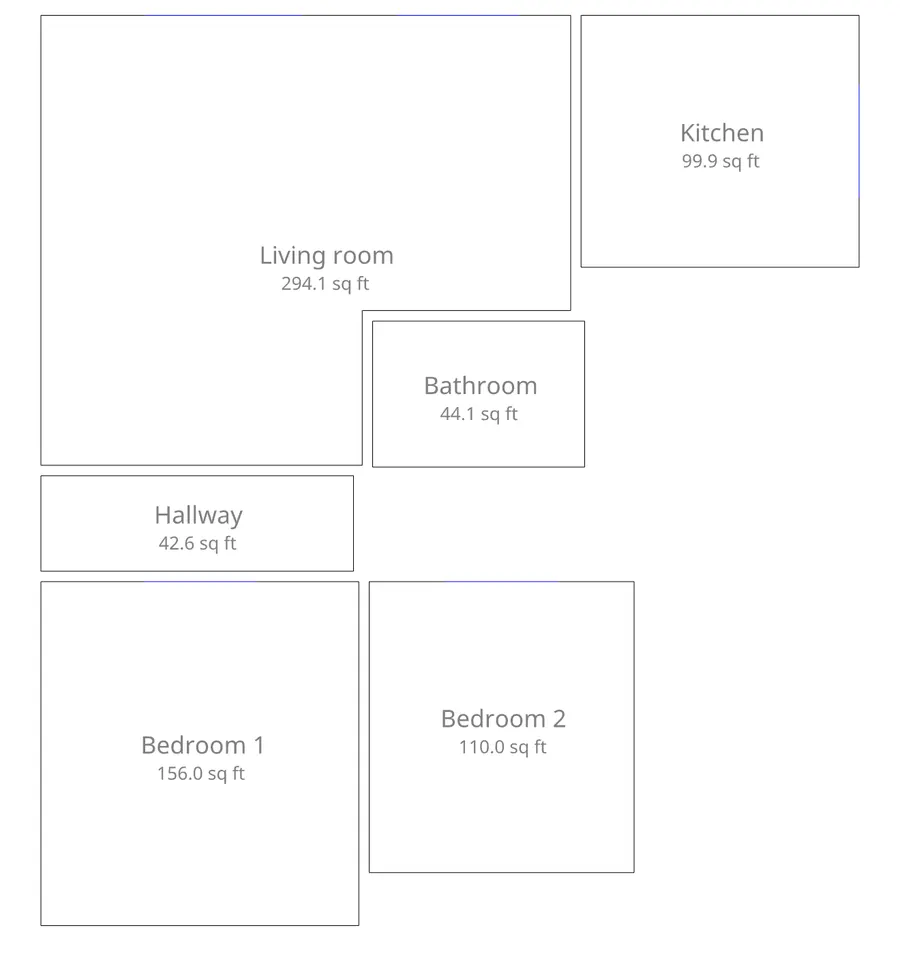
In Settings, under Measuring, Scan rooms one after another (beta) lets you walk from one room straight into the next without closing the scan. Rooms scanned together keep their places on a Whole-home plan; other rooms are set out in a row beside them. This is a beta: where rooms overlap, RoomLedger tells you, and rescanning is the fix.
Where the plan goes
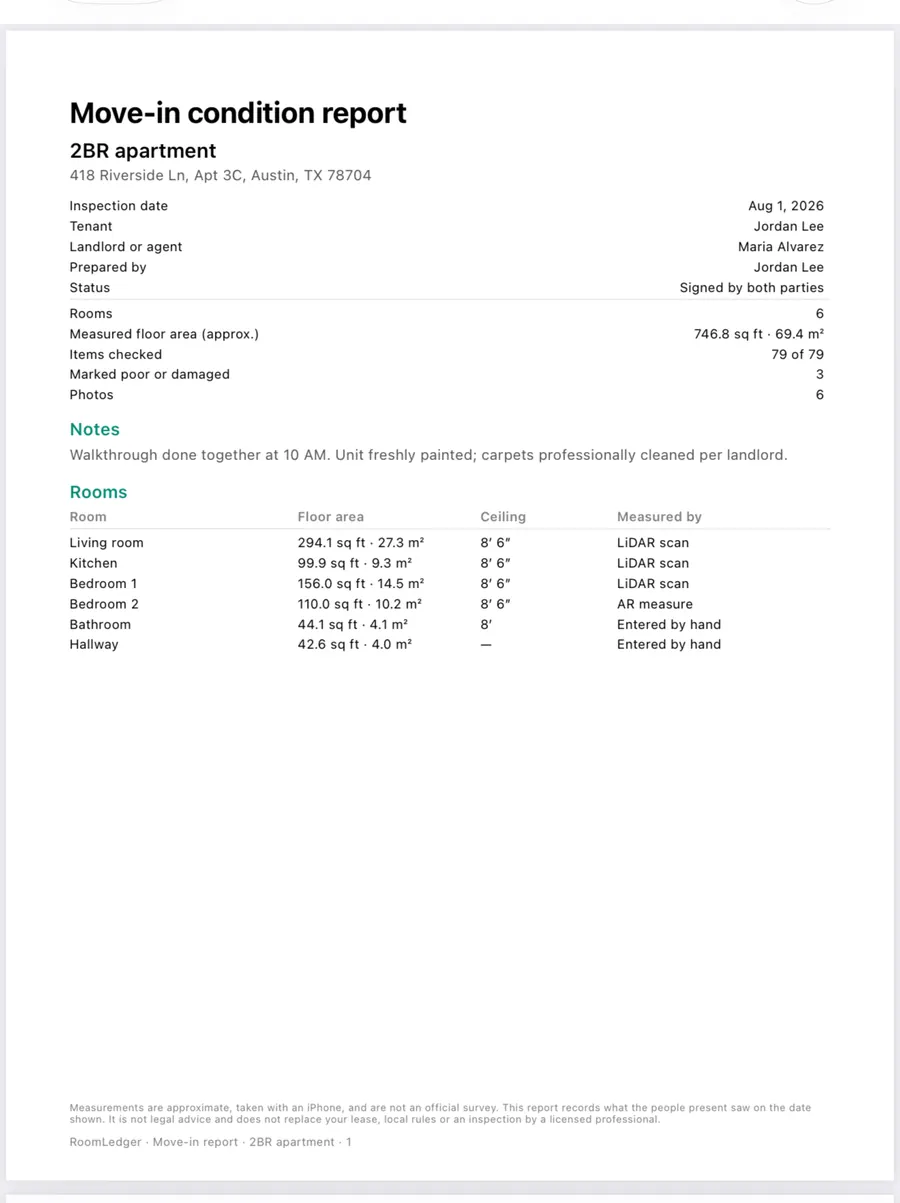
The floor plan and figures go into each room's page of the condition report, and the report's rooms table lists how each room was measured. From the Export tab, Floor plan for CAD (DXF or SVG) and 3D model (USDZ or OBJ) are free on every plan. See floor plans for CAD and drawings.
FAQ
Which iPhones can scan a room?
iPhone and iPad Pro models with a LiDAR Scanner. On other models the scan button isn't shown, and RoomLedger measures with AR or the size you type in.
How accurate is a LiDAR room scan?
RoomLedger doesn't claim an accuracy figure. Treat the numbers as approximate and check a wall or two with a tape measure, especially if a figure matters for the lease.
Can I rescan a room?
Yes. Tap Scan with LiDAR again. Every scan is kept as its own version, and Scan history lets you go back to an earlier floor plan.
Does the scan leave my iPhone?
No. Scans, plans and 3D models live on the device. There is no account and no cloud; nothing leaves the iPhone until you share an export. Opt-in scan stats, if you turn them on, are only counts, not the scans themselves.
Download RoomLedger and scan your first room in about a minute.
Keep reading
Measure a room without LiDAR: AR measure and typed sizes in RoomLedger
No LiDAR? Measure rooms in RoomLedger with AR, tapping walls or corners, or type a rectangle or L-shape from a tape measure, then show feet, meters or both.
Read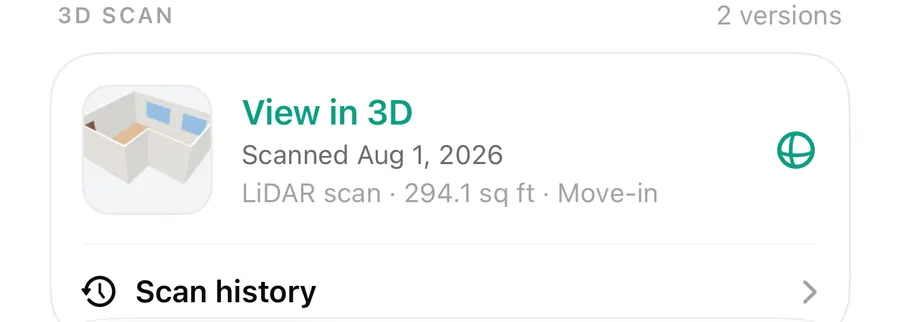
3D room scans in RoomLedger: every version kept, viewable in 3D and AR
Each LiDAR scan in RoomLedger is kept as its own 3D version. Turn it around, place it in the room with AR, share the USDZ, or bring back an earlier floor plan.
Read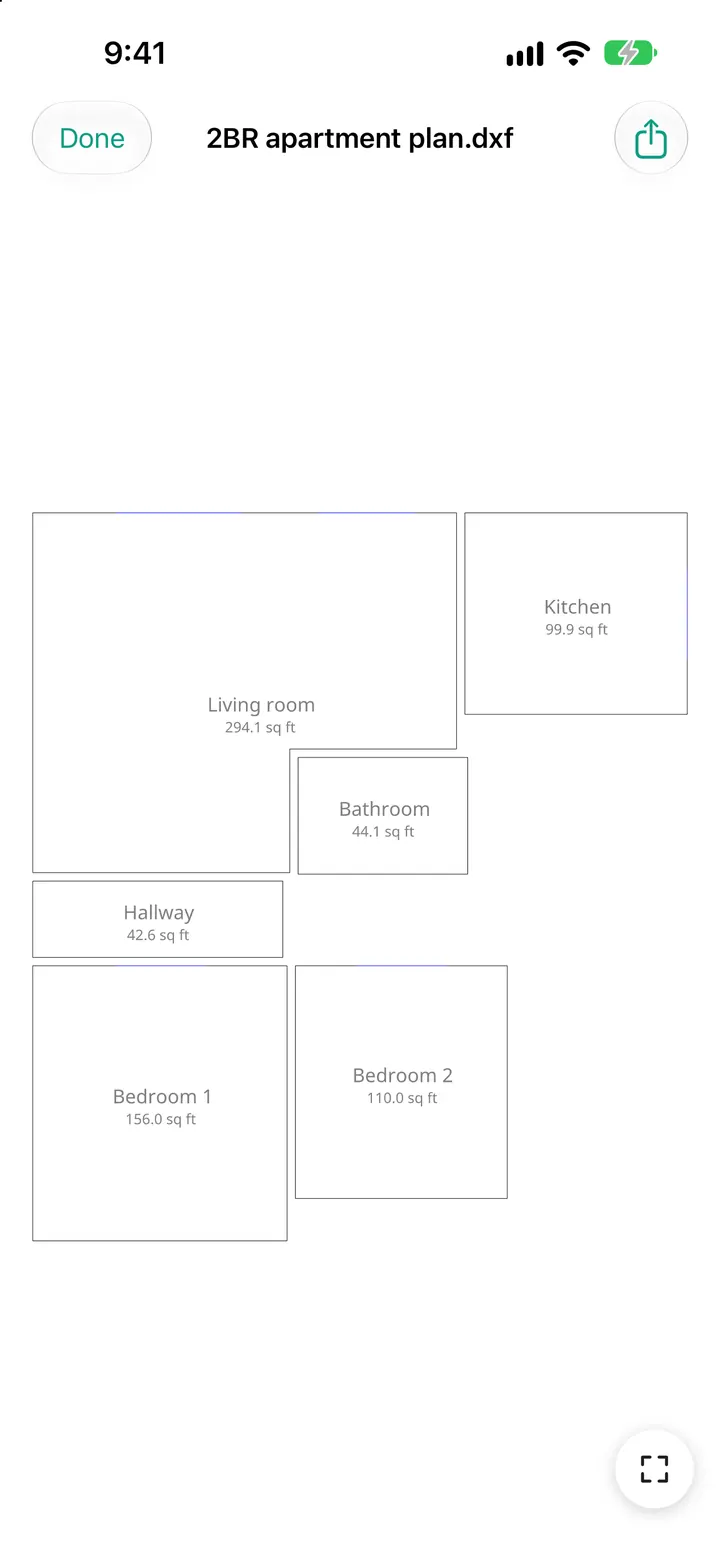
Export floor plans to DXF, SVG and IFC, and open CAD drawings in RoomLedger
Export measured rooms from RoomLedger as DXF or SVG plans, USDZ or OBJ models and IFC, then open an architect's DXF, IFC, STEP or PDF on your iPhone to compare.
ReadHow Does iPhone LiDAR Measure a Room? What to Know Before You Scan
Learn how RoomLedger uses LiDAR for approximate room measurements, when an iPhone Pro is needed, and why scan results need context.
Read guide