Measure a room without LiDAR: AR measure and typed sizes in RoomLedger
No LiDAR? Measure rooms in RoomLedger with AR, tapping walls or corners, or type a rectangle or L-shape from a tape measure, then show feet, meters or both.
Short answer
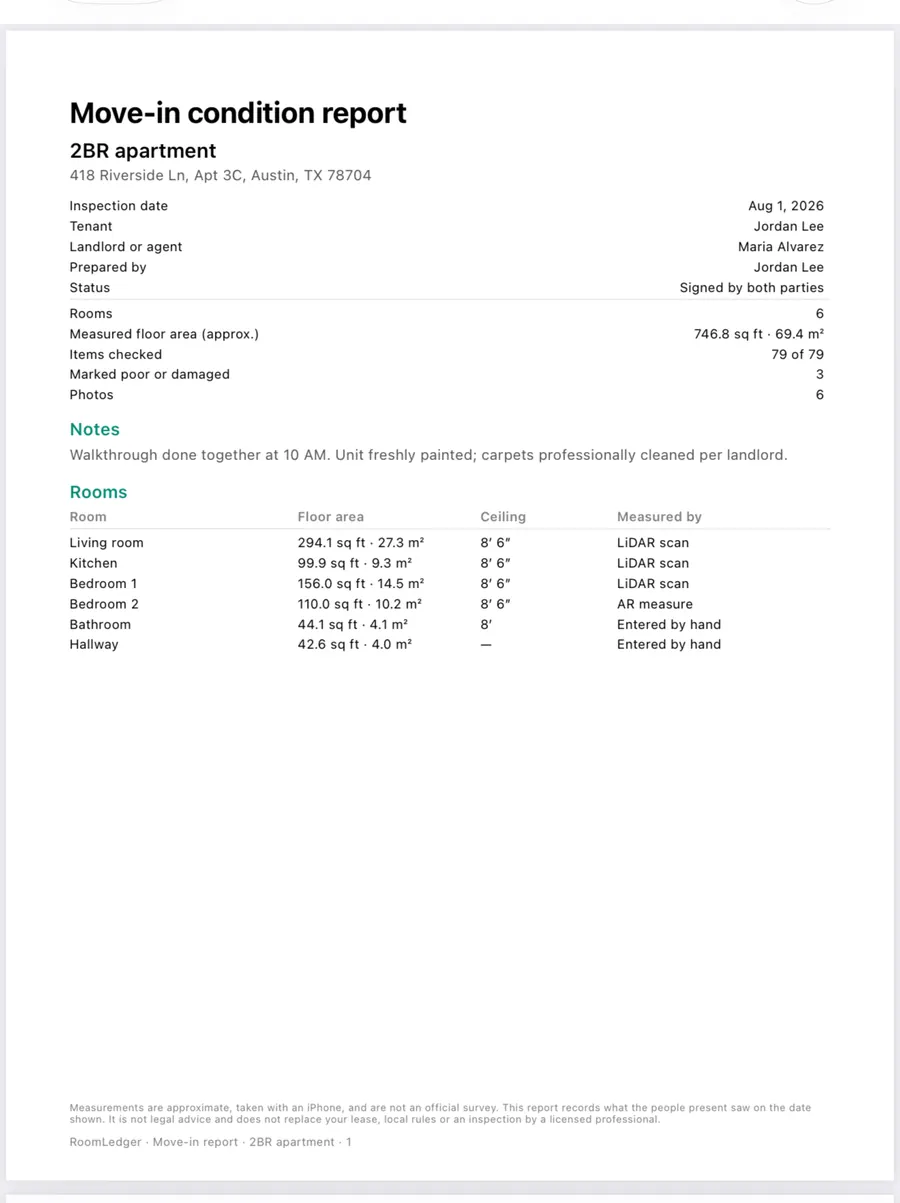
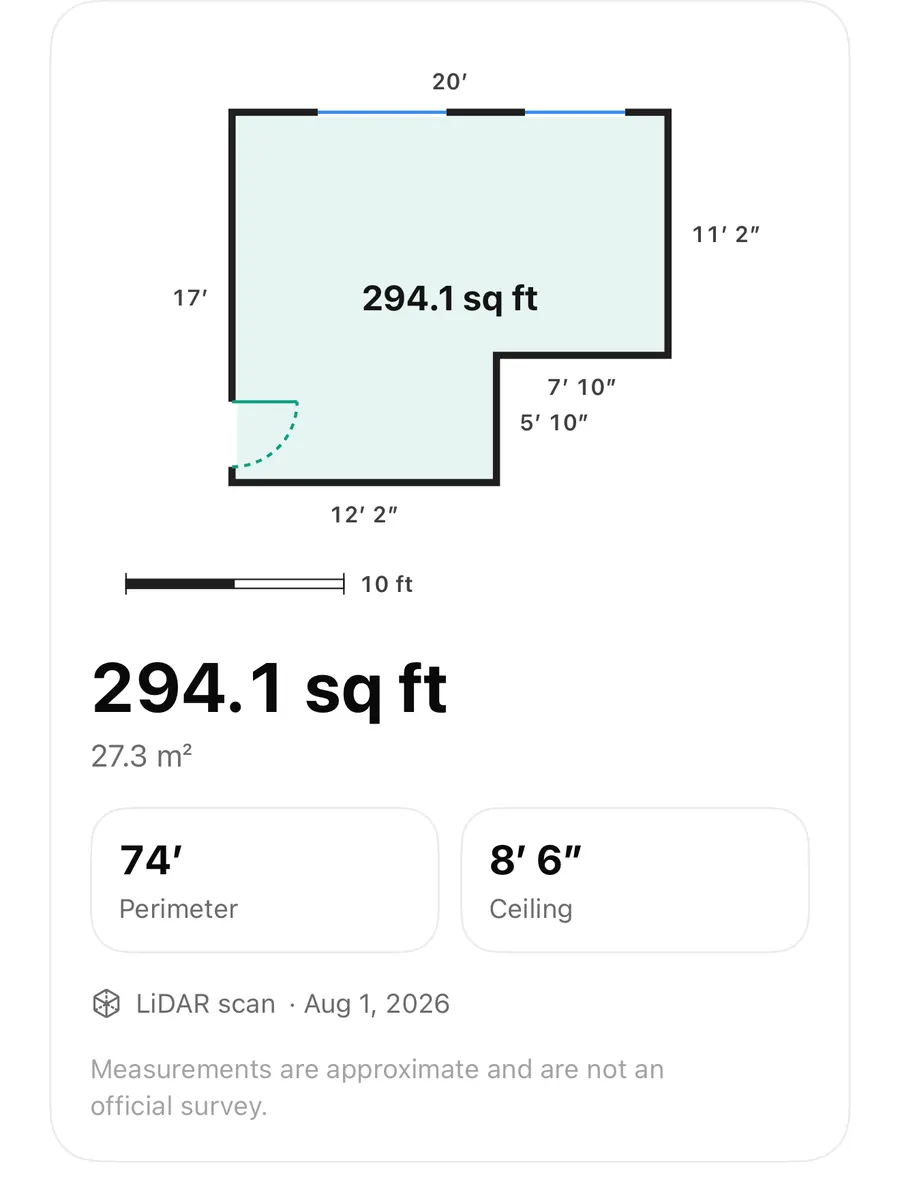
Every room in RoomLedger can be measured three ways. Without a LiDAR Scanner, use AR measure to tap from wall to wall or around the floor corners with the camera, or Enter size to type a rectangle or an L-shape from a tape measure or the lease. Either way you get a floor plan and a floor area for the report, labeled with how it was measured.
LiDAR room scanning needs an iPhone or iPad Pro. Most iPhones don't have the scanner, and some rooms defeat it anyway. RoomLedger gives every room the same result no matter how it was measured: a plan, a floor area, an optional ceiling height, and a note in the report saying where the numbers came from. On an iPhone without LiDAR, the room page simply shows AR measure and Enter size, and everything else (walkthroughs, photos, signatures, reports and inventory) works the same.
AR measure: two sides or corners
AR measure uses the camera and ARKit. A dot in the middle of the screen marks where you are aiming. There are two ways to use it, picked at the top of the screen:
- Two sides, for rectangular rooms. Aim at one wall and set the first point, then aim at the opposite wall and set the second. RoomLedger takes the width first, then the length, and shows the live distance as you move.
- Corners, for rooms that aren't rectangles. Aim at a corner where the walls meet the floor, tap Add corner, and go around the room. After at least three corners, tap Finish. If two sides cross, RoomLedger asks you to tap the corners in order.
Undo takes back the last point. When both sides are measured, the save button shows the area, so you can check it looks right before you keep it.
Measure a room with AR
- Open the room and tap AR measure.
- Choose Two sides for a rectangle or Corners for any other shape.
- For two sides: aim at one wall and tap Set first point, aim at the opposite wall and tap Set second point. Repeat for the length.
- For corners: tap Add corner at each corner where the walls meet the floor, going around the room, then Finish.
- Check the area on the save button, then tap it.
On iPhones with LiDAR
If your iPhone does have LiDAR, AR measure places the dot on the depth mesh LiDAR builds of the room. That holds better on bare white walls and works in rooms too big or open for a full scan. When every point was placed on the mesh, the room is labeled LiDAR mesh instead of AR measure. If a LiDAR scan fails, RoomLedger offers Measure corners on the LiDAR mesh straight away. See scanning a room with LiDAR.
Enter size: rectangle or L-shape
Sometimes the quickest source is a tape measure or the size printed in the lease. Enter size opens Enter dimensions:
| Shape | What you type |
|---|---|
| Rectangle | Width and length |
| L-shape | Width and length of the whole room, plus the cut-out corner's width and length |
| Both | An optional ceiling height |
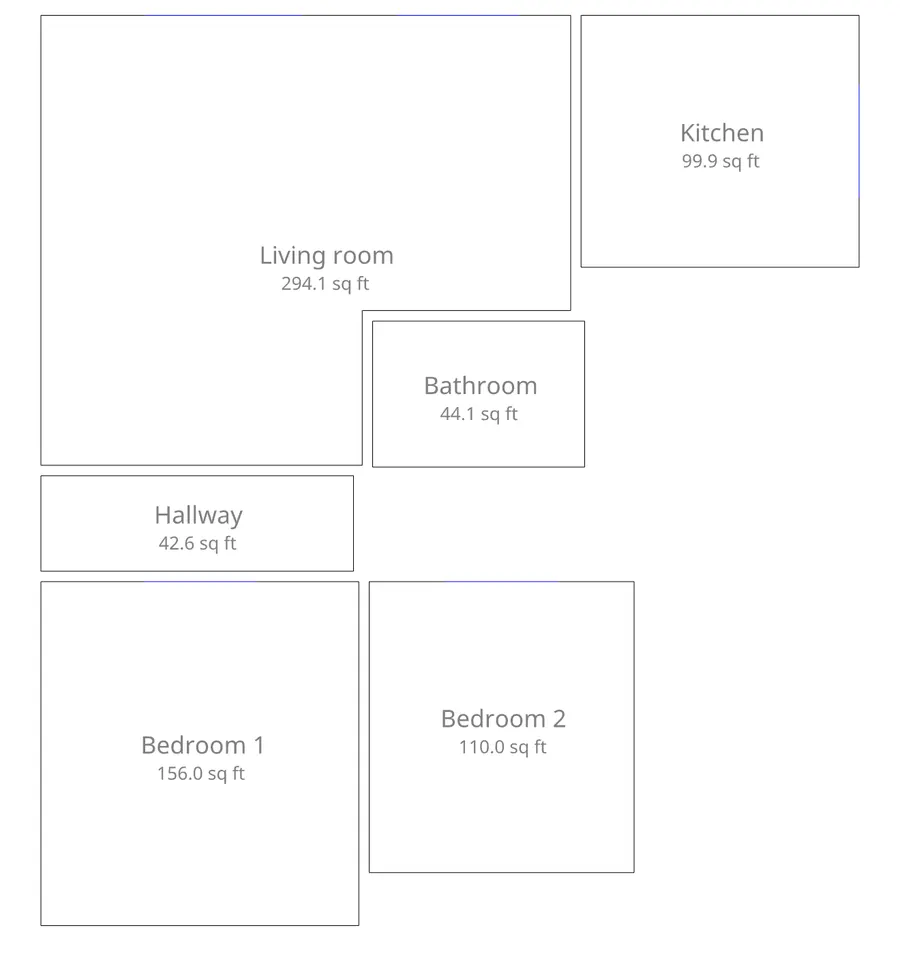
Measure wall to wall at floor level. The cut-out must be smaller than the room, and RoomLedger warns you if it isn't. There is no free-form polygon entry; for an odd shape, use AR measure with corners. Typed rooms are labeled Entered by hand in the report.
Feet, meters or both
In Settings, under Measuring, Units is Feet and inches (the default) or Meters. Turn on Show both units and the other system appears in brackets, in the app and on reports, which helps when a lease or a builder uses the other one. The Enter dimensions screen has its own units picker, so you can type what the tape says.
Settings also shows This iPhone measures with, so you know which methods your device supports.
Check level
On a walkthrough's checklist, Check level turns the phone's motion sensor into a rough level. Lay the phone flat on the floor or a counter, screen up; for a door or window frame, hold the side of the phone against it. The screen tells you which way it is off, such as Lower toward the top edge or Leans to the left, and labels the result Approximate phone reading.
If a sloping floor or a sticking door is worth recording, Add to note puts the reading on the line you choose, for example Floor or carpet, marked as an approximate phone reading. A phone is a rough guide, not a builder's level: a thick case or an uneven surface affects the reading.
Changing a figure later
Once a room has a plan, Adjust a door, window or ceiling lets you correct a single size by hand. The walls stay as measured, the old figure stays in the room's history, and the report says it was adjusted by hand. To change the whole outline, measure again with any method.
FAQ
Can I use RoomLedger on an iPhone without LiDAR?
Yes. Only the room scan needs LiDAR. AR measure, typed sizes, walkthroughs, photos, signatures, reports and the inventory all work the same.
Which method should I use?
Use AR measure with Two sides for simple rectangles, Corners for other shapes, and Enter size when you have a tape measure or the lease lists the room sizes.
Does the report say how a room was measured?
Yes. The rooms table lists each room as LiDAR scan, LiDAR mesh, AR measure or Entered by hand, and hand corrections are marked as adjusted by hand.
Can I mix methods in one home?
Yes. Each room keeps its own method, and you can measure a room again at any time.
Download RoomLedger and measure your rooms on any iPhone.
Keep reading
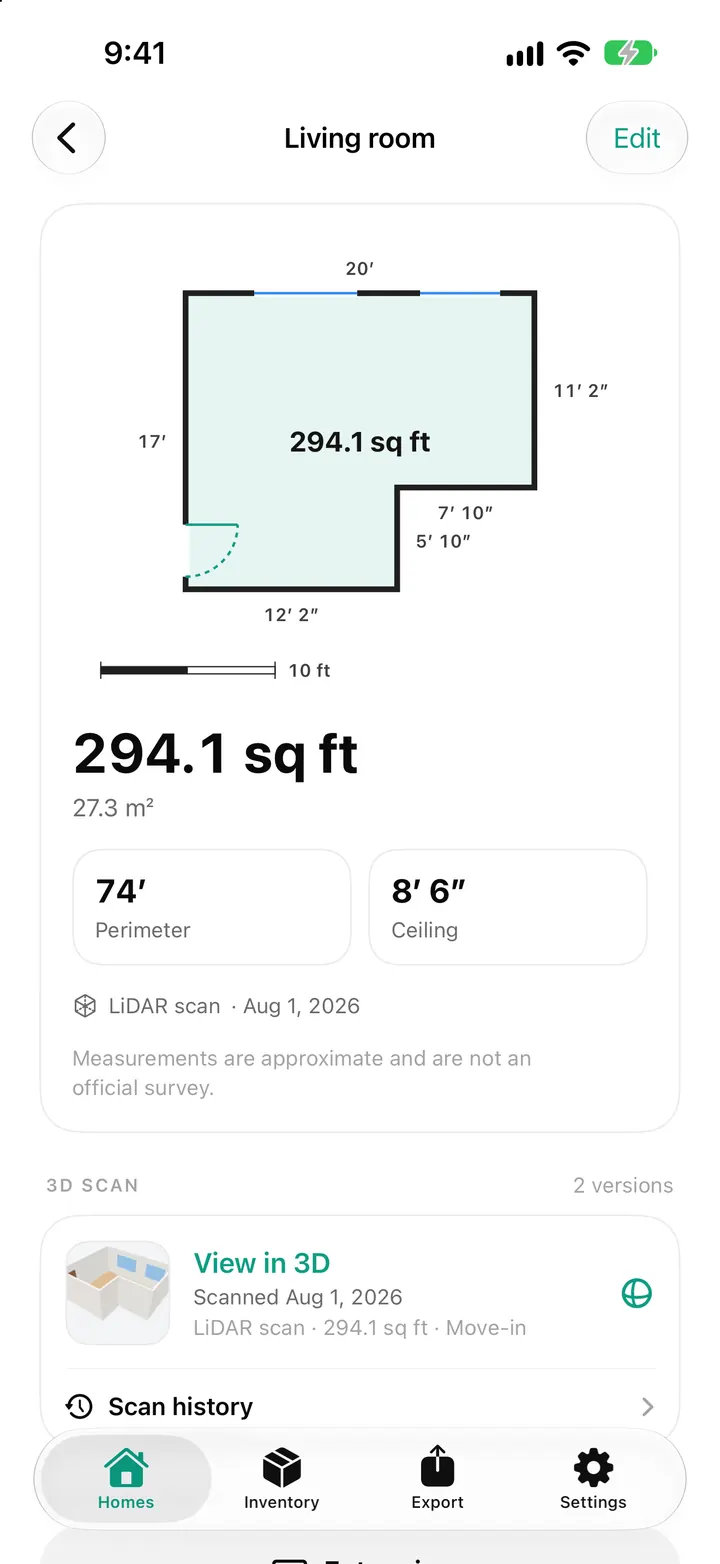
Scan a room with LiDAR on iPhone: floor plan, area and ceiling in RoomLedger
Scan a room with your iPhone's LiDAR Scanner in RoomLedger: check the scan, turn off mistakes, then keep a floor plan with area, perimeter and ceiling height.
Read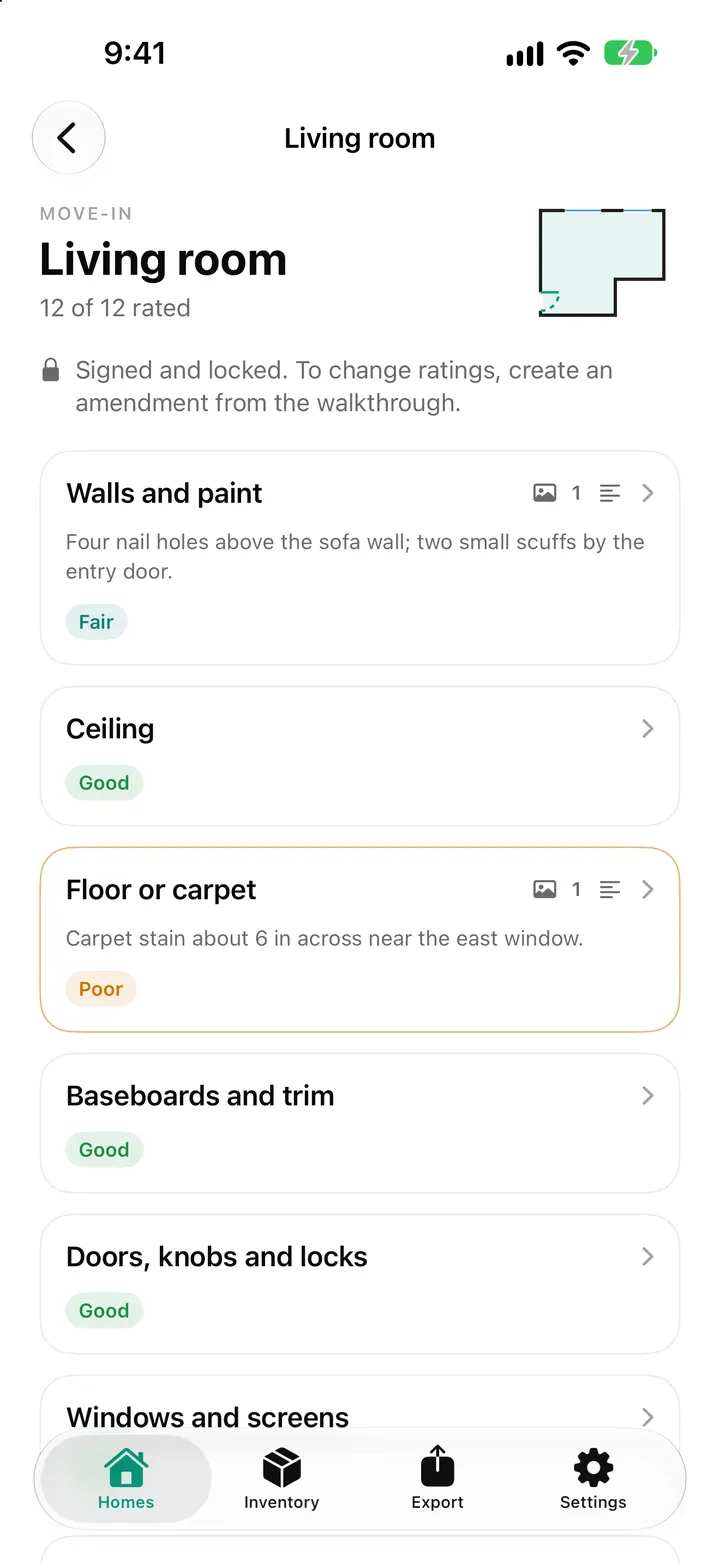
Room checklists and condition ratings in RoomLedger: Good, Fair, Poor, Damaged
How RoomLedger builds a checklist for each room type, what Good, Fair, Poor, Damaged and N/A mean, how issues are counted, and shortcuts that speed things up.
Read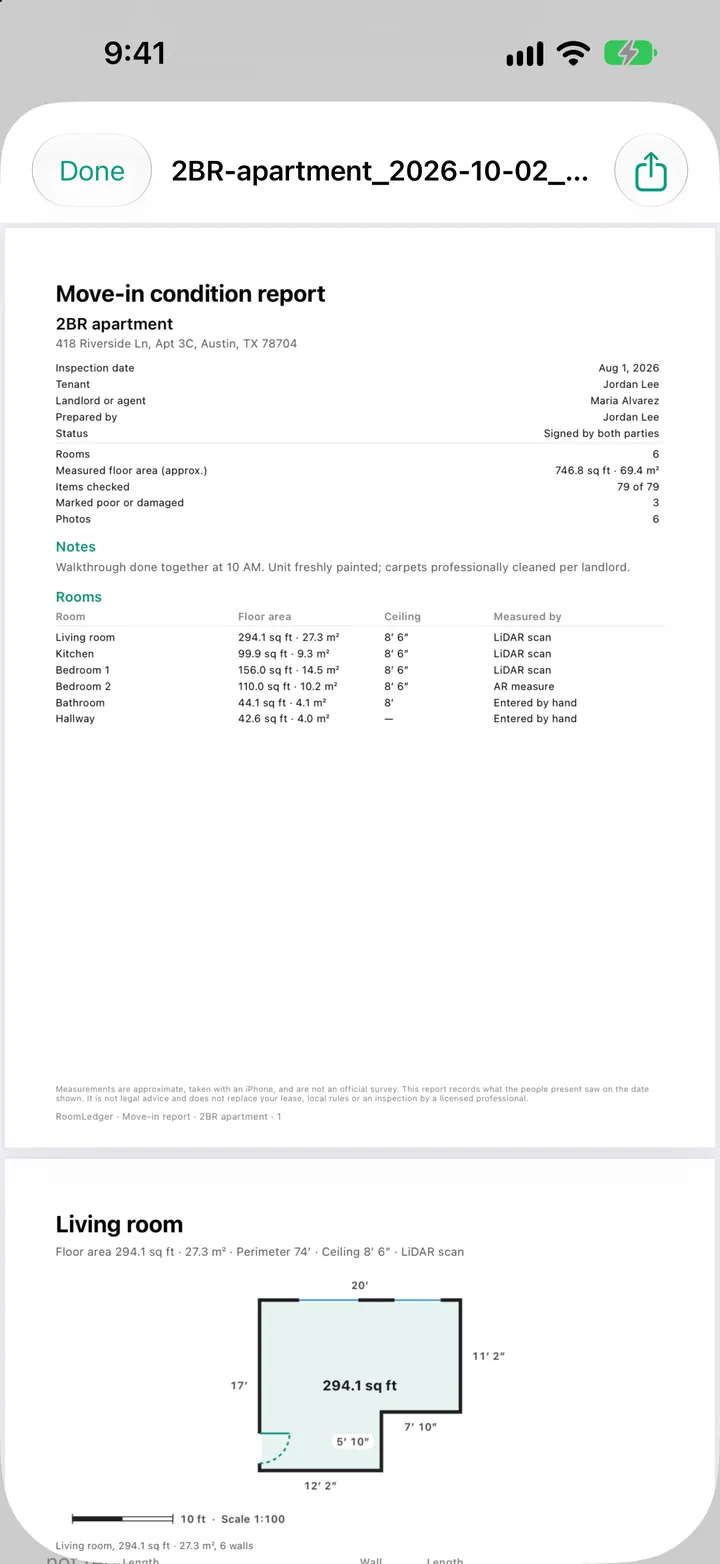
Inside the RoomLedger condition report PDF: rooms, photos and SHA-256 fingerprints
What a RoomLedger condition report PDF holds, from floor plans and numbered photos to SHA-256 photo fingerprints, a verification code, password and face blur.
ReadHow to Measure a Room Without an iPhone Pro
Options for measuring a room without LiDAR: tape, laser tools, manual dimensions, error notes and RoomLedger photos.
Read guide