Read serial numbers from labels and fill in receipts with RoomLedger
Photograph a product label to fill in brand, model and serial number, scan a receipt for the date, total and store, all read on your iPhone and checked by you.
Short answer
In a RoomLedger inventory item, Read label takes a photo of the sticker or rating plate and fills in the Brand, Model and Serial number it finds; a Code 128 barcode next to the serial is read exactly. Under Receipt you can Scan receipt, Choose photo or Attach PDF, and RoomLedger fills in the value, purchase date and store. All reading happens on the iPhone, and you check every field.
Typing a 14-character serial number off the back of a TV, squeezed between the wall and the stand, is the part of a home inventory most people skip. RoomLedger reads it from a photo instead, and does the same for the receipt. The aim is fewer typing errors and fewer empty fields, not a guess you have to trust.
Reading a label
Every inventory item has a Make and serial section with three fields: Brand, Model and Serial number. Next to it, Read label offers Take photo of label or Choose from Photos, if you already took a picture of the sticker.
RoomLedger runs Apple's text recognition on the photo and looks for the usual markers: Serial No., S/N, Model No., M/N and similar, with the value on the same line or the line below. It recognizes common appliance and electronics brands printed on the label. If the label carries a Code 128 barcode for the serial, as many appliances do, the barcode wins over the text, because a barcode is read exactly.
When it's done, a line under the fields tells you what it found, for example Filled in brand, model, serial number (from the barcode). Check them against the label. If nothing could be read, it says so and suggests a sharper, closer photo, or typing the numbers in. The label photo is added to the item's photos either way, so the original sticker is on record.
Fill in an item from its label
- Open the item in the Inventory tab, or tap Add an item.
- In Make and serial, tap Read label, then Take photo of label.
- Get close enough that the label fills most of the frame, with no glare across the numbers.
- Wait for the fields to fill in, then compare each one with the label and fix anything that's off.
- If the serial didn't come through, type it; the field accepts capitals and doesn't autocorrect.
Adding and reading a receipt
The Receipt section of an item has three ways in:
- Scan receipt opens the document scanner and keeps the scanned page.
- Choose photo picks a picture of the receipt from your library.
- Attach PDF takes an emailed or downloaded receipt from Files.
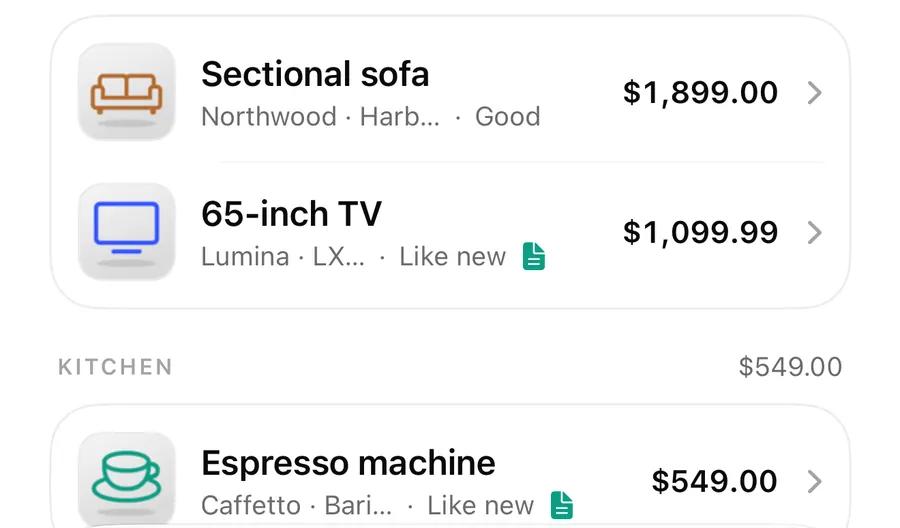
As soon as the receipt is added, RoomLedger reads it and fills in the What you paid value, the Purchased date and the Store, but only where those fields are still empty, so it never overwrites something you typed. It looks for the grand total rather than a subtotal, tax or tip line. Values it is unsure of are marked Needs review until you touch them, and the message says Check the fields marked Needs review. If it can't find a date or total, it asks you to type them in.
Already attached a receipt before you knew about this? Fill from receipt reads the stored receipt again. View receipt opens it full size, and Remove receipt takes it off the item.
Suggest a name and category
On iPhones with Apple Intelligence (iOS 26 or later), an item can show Suggest a name and category once you have typed something to go on: a rough name, a brand, a model or a note. The suggestion is made on the device by Apple's on-device model, appears with an AI-generated label, and only fills in the item if you tap Use. Dismiss throws it away. Where Apple Intelligence isn't available, the button simply doesn't appear; everything else works the same.
This helps after a label read, when you have LG and a model code but no friendly name. It doesn't look up prices or product details.
Where the details end up
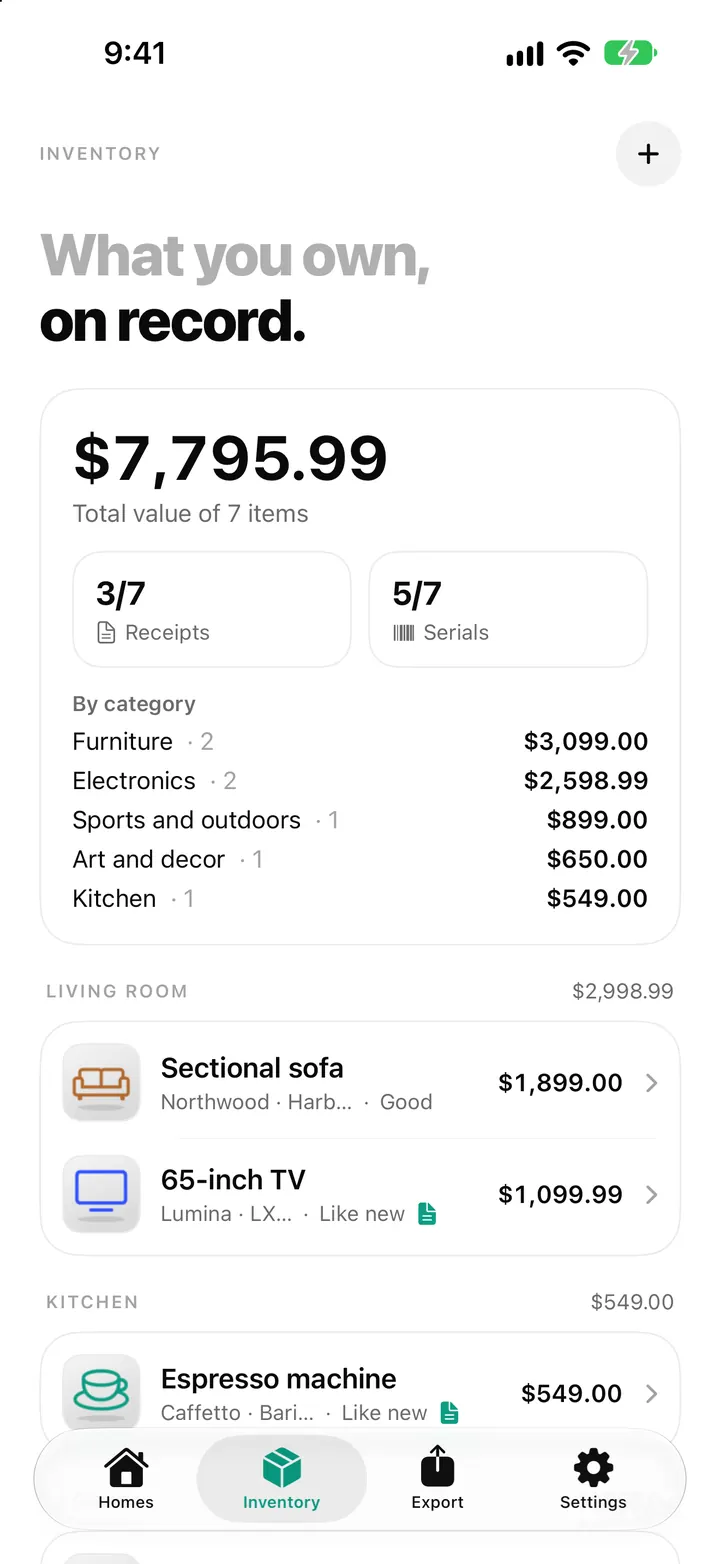
Brand, model and serial show in the Inventory (PDF) item table, with a note that serial and model numbers were read from labels on the device and may need checking. Receipts are counted in the PDF (Items with a receipt) and fingerprinted with SHA-256; the receipt files themselves go into the Everything (ZIP) export. More on the list itself in building a home inventory.
FAQ
Does label reading need an internet connection?
No. Text and barcode recognition run on the iPhone, so it works in a basement or a garage with no signal.
Will reading a receipt change a price I already entered?
No. Only empty fields are filled in. If everything was already there, RoomLedger tells you nothing new was found on the receipt.
Why don't I see Suggest a name and category?
It needs Apple Intelligence on an iPhone running iOS 26 or later, with the feature turned on and the model downloaded. It also needs something typed in the item first.
Can I attach a receipt that came by email?
Yes. Save the PDF to Files, then use Attach PDF. It is read the same way as a scanned receipt.
Download RoomLedger and read the serial off the back of your TV without moving it.
Keep reading
Build a home inventory for insurance on your iPhone with RoomLedger
List what you own room by room in RoomLedger: photos, values, serial numbers and receipts, a running total with gaps flagged, and inventory PDF and CSV exports.
Read
Record meter readings and keys in RoomLedger, with the camera reading the digits
Log electric, gas and water meters and every key at move-in and move-out. RoomLedger reads meter digits with the camera, keeps the photo and you confirm it.
Read
RoomLedger privacy: on-device records, Face ID lock and moving a home
RoomLedger keeps scans, photos and reports on your iPhone, with no account. Lock it with Face ID, limit usage data and move a home as an encrypted file.
ReadHow to Record Equipment Serial Numbers in a RoomLedger Inventory
Capture serial numbers, models, locations and sharing limits in a traceable RoomLedger inventory.
Read guide